Deep links and deferred deep links
How a smart link opens your app on the right screen, how an install is matched to the click, and the setup for Android, iOS, Flutter and web.
A deep link opens your app on a particular screen. A deferred deep link does the same after a person installs the app from the store, on their first launch. Both deliver the same payload to your app: the link's deep link value, its extra values and its attribution.
Your app decides what the deep link value means. TrueEngage never opens a screen for you.
Before you start
- SDK 0.4.0 or later in your Android, iOS or Flutter app. The web SDK also reads smart link clicks, see Web.
- The app registered in Connect > Apps, with the Apple Team ID for iOS and the Signing certificate SHA-256 fingerprints for Android. See Register your apps.
- An active link domain. See Link domains.
How it works
The app is installed
- The person taps a link. The operating system sees that the link's host belongs to your app and opens the app instead of the browser. On iOS this is a universal link. On Android it is an app link.
- Your app passes the opened address to the SDK. The SDK asks TrueEngage what the address means and gets the payload back.
- The SDK calls your
onDeepLinklistener once. TrueEngage records an open against the link.
The app is not installed
- The person taps the link and is sent to the App Store or Google Play. TrueEngage records the click and remembers what the link was for.
- The person installs and opens the app. On the first launch the SDK asks TrueEngage whether this device came from a link click. This happens once per install.
- If TrueEngage finds the click, the SDK calls your
onDeepLinklistener withisDeferredset totrue. TrueEngage records an install against the link.
TrueEngage owns the matching on its servers. Your app only sends the device's signals and gets either a payload or nothing.
| Platform | How the match is made |
|---|---|
| Android | The link adds a click id to the Google Play address. After install, the SDK reads it back through Google's Play Install Referrer. This match is exact (matchType is referrer). |
| iOS | Apple offers no click id, so TrueEngage compares the device with recent clicks: the network address (kept only as a salted hash), the iOS version, language, time zone and screen size. A match must score high enough (matchType is fingerprint). The clipboard is not used. |
TrueEngage prefers no match to a wrong match. A stranger's install is never credited to a click on a weak signal.
Test and Live are separate. A Test app key can never match a Live click.
Payload your app receives
| Field | Meaning |
|---|---|
url |
The address that was opened. |
deepLinkValue |
The link's deep link value. For a dynamic link, the path and the parameters that are not reserved. |
params |
The link's additional values, for example deep_link_sub1. |
attribution |
mediaSource, campaign, adset, ad, channel and subs. |
linkId, templateKey, clickId |
Ids of the link, its template and the click. |
isDeferred |
true when the link was matched after install. |
matchType |
direct, referrer or fingerprint. |
isRetargeting |
true when the link is a retargeting link. |
referrer |
Set when the link was created in an app (see Links API and webhooks). It holds linkId and, only if you allow it in Link settings, creatorUserId. |
The listener fires once per open. A link that arrives before you attach the listener is held and delivered when you attach it.
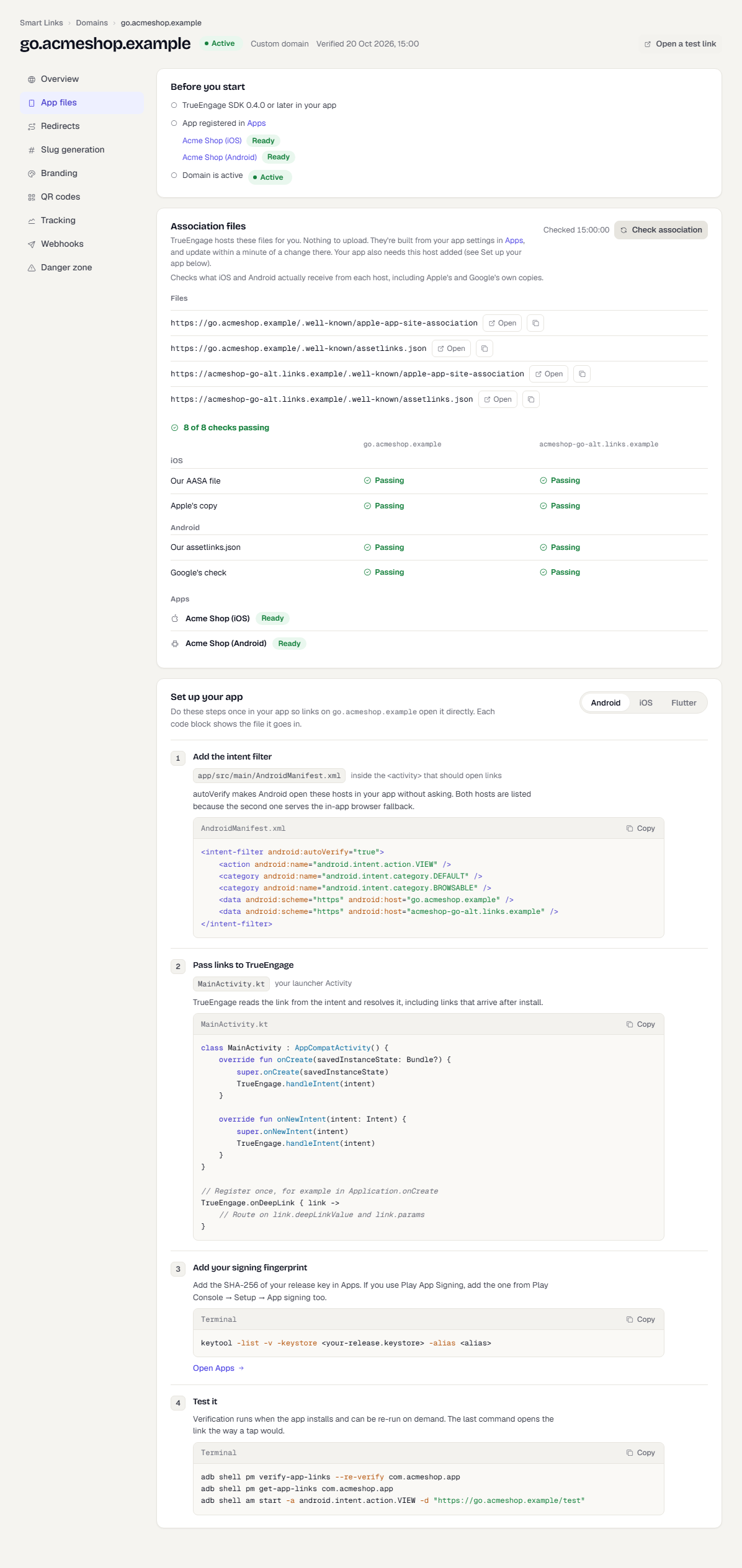
Set up your app
The Set up your app section of the domain page in the console shows the same steps with your own host names filled in. Open Smart Links > Domains, choose the domain, then App files.
Android
- Add an intent filter to the activity that should open links. List the link host and the alternate host.
<intent-filter android:autoVerify="true">
    <action android:name="android.intent.action.VIEW" />
    <category android:name="android.intent.category.DEFAULT" />
    <category android:name="android.intent.category.BROWSABLE" />
    <data android:scheme="https" android:host="go.acmeshop.example" />
    <data android:scheme="https" android:host="acmeshop-go-alt.links.example" />
</intent-filter>
- Pass intents to the SDK, and register one listener.
class MainActivity : AppCompatActivity() {
    override fun onCreate(savedInstanceState: Bundle?) {
        super.onCreate(savedInstanceState)
        TrueEngage.handleIntent(intent)
    }

    override fun onNewIntent(intent: Intent) {
        super.onNewIntent(intent)
        TrueEngage.handleIntent(intent)
    }
}

// Once, for example in Application.onCreate
TrueEngage.onDeepLink { link ->
    // Route on link.deepLinkValue and link.params
}
- In Connect > Apps, add the SHA-256 fingerprint of your release signing key. With Play App Signing, add the one from Play Console too.
iOS
- In Xcode, open your target, then Signing & Capabilities, and add Associated Domains. Add both hosts.
<key>com.apple.developer.associated-domains</key>
<array>
    <string>applinks:go.acmeshop.example</string>
    <string>applinks:acmeshop-go-alt.links.example</string>
</array>
- Pass the activity to the SDK and register one listener.
// SwiftUI
.onContinueUserActivity(NSUserActivityTypeBrowsingWeb) {
    TrueEngage.handle(userActivity: $0)
}

// Once, after TrueEngage.initialize
TrueEngage.onDeepLink { link in
    // Route on link.deepLinkValue and link.params
}
With UIKit scenes, call TrueEngage.handle(userActivity:) from scene(_:continue:) and for each activity in connectionOptions.userActivities in scene(_:willConnectTo:options:).
- In Connect > Apps, add the Apple Team ID to the iOS app.
Flutter
Do both native setups above. Android links are forwarded for you. On iOS with scenes, the native SceneDelegate must also call TrueEngage.handle(userActivity:). Then listen in Dart:
// After TrueEngage.initialize
TrueEngage.onDeepLink.listen((link) {
  // Route on link.deepLinkValue and link.params
});
Web
When a visitor is sent to your verified web app, TrueEngage adds te_clid to the address. The web SDK reads it, credits the visit to the link, removes it from the address and calls your listener.
TrueEngage.onDeepLink((link) => {
  router.push(link.deepLinkValue ?? '/');
});
For other web addresses, te_clid is added only if you turn on Add te_clid to every web address for the domain. See Link domains.
Association files
For the operating system to open your app, your link host must publish a file that names your app: apple-app-site-association for iOS and assetlinks.json for Android. TrueEngage hosts both for you on the link host and the alternate host. Nothing to upload.
The files are built from the apps used by the domain's templates. They update within a minute of a change to an app or template.
To check them, open the domain, choose App files, and select Check association. The check fetches the files from each host, including Apple's and Google's own copies, and shows each check as Passing, Failing or Pending. An app marked Needs setup lacks its Team ID or fingerprint. Select Fix in Apps to add it.
Test it
- Android. After install, re-run verification and open the link as a tap would:
adb shell pm verify-app-links --re-verify com.acmeshop.app
adb shell pm get-app-links com.acmeshop.app
adb shell am start -a android.intent.action.VIEW -d "https://go.acmeshop.example/autumn24"
- iOS. Install a build signed with the Team ID, then tap the link in Notes or Messages. Typing it in the Safari address bar does not open apps. Apple caches the file and can take up to 24 hours. During development, add
?mode=developerto the entitlement entry and turn on developer mode on the device. - Any platform. In the link builder, select Test on phone and scan the code. It shows the route the link would take.
- Deferred. Uninstall the app, tap the link on the phone, install a test build from TestFlight or an internal Play track, and open it.
Settings that affect matching
In Smart Links > Settings you can change the iOS match window (15 to 240 minutes, default 60), the iOS strictness (Strict, Balanced or Lenient) and the Android window (1 to 30 days, default 7). The Match rate card shows how many attempts in the last 30 days matched. See Link settings.
Opt-out
If the person has opted out of tracking in the SDK, the SDK makes no link calls. handleIntent and handleUniversalLink return false. See Consent and opt-out.
Related pages
Was this page helpful?