A tour of the console
Find your way around the TrueEngage console - the sidebar, the Test and Live switch, the workspace switcher, the search palette and the Home page.
This page shows what is where. Each part links to the guide that goes deeper.
The sidebar
The sidebar on the left groups the console into sections. Select a section title to open or close it. The console remembers which ones you opened.
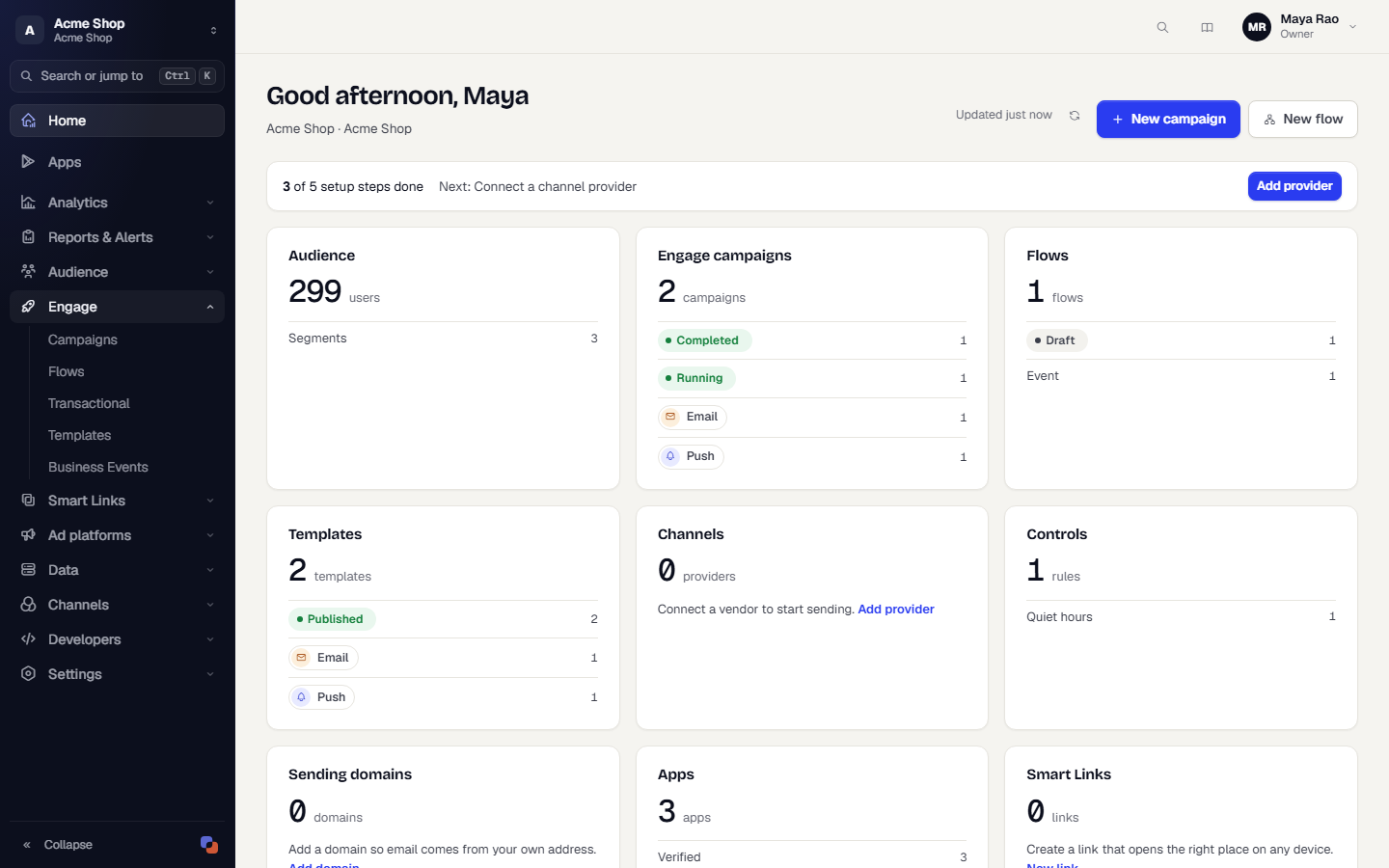
| Section | What is in it |
|---|---|
| Home | Setup progress, items that need attention, and totals for the workspace. |
| Apps | The web, iOS and Android apps that send events. See Register your apps. |
| Analytics | Dashboards and Funnels. |
| Audience | Users, Segments and RFM Segments. |
| Engage | Campaigns, Flows, Transactional, Templates and Business Events. |
| Ad platforms | Connections, Campaigns and Audience. See Ad platforms. |
| Data | Data Management and Data Imports. |
| Channels | Push, Email, SMS & RCS, WhatsApp, Delivery Controls and Advanced. Each channel page has tabs for its senders, domains, suppression and more. See Channels overview. |
| Smart Links | Links, Templates, Analytics, Domains and Settings. See Smart Links. |
| Reports & Alerts | Reports (with the Campaign reports and Schedules tabs), Dashboard Subscriptions and Alerts. |
| Developers | API Keys and Developer Tools. See API keys and Developer tools. |
| Settings | Account, Team, Roles and All settings, a hub for Storage & Assets, Identity Verification, UTM defaults, Attribution and more. See Settings overview. |
Some groups also offer shortcuts to create things. On the collapsed sidebar, hover over a group icon to open a menu with its pages and, for Audience, Engage and Smart Links, buttons such as New Segment, New Campaign, New Flow, New Link and New QR Code.
You only see the pages your role allows. If one is missing, check My permissions on the Account page, or ask an Owner or Admin. Select Collapse at the bottom of the sidebar to shrink it to icons.
Test and Live
The switch at the top of the page, labelled Test and Live, chooses which environment you are working in. The address changes too: /w/<workspace>/test/... or /w/<workspace>/live/....
- Test shows a Sandbox delivery badge. Sends are captured, and only people on the allowlist get real messages.
- Live lights up the switch, adds a green line across the top of the page and shows the note Changes here reach real customers.
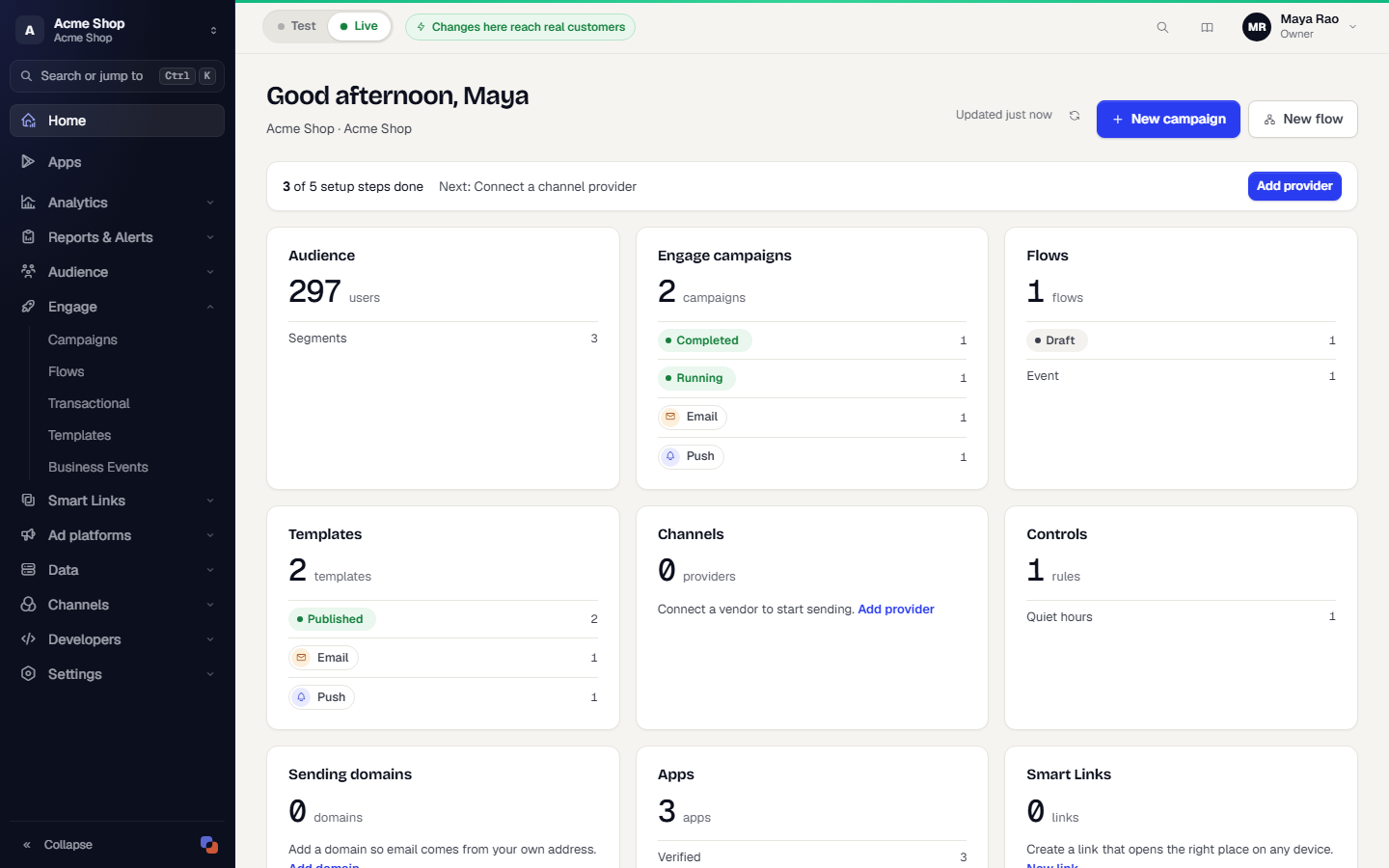
Test and Live have separate data, keys and settings. See Test and Live.
Switch workspace
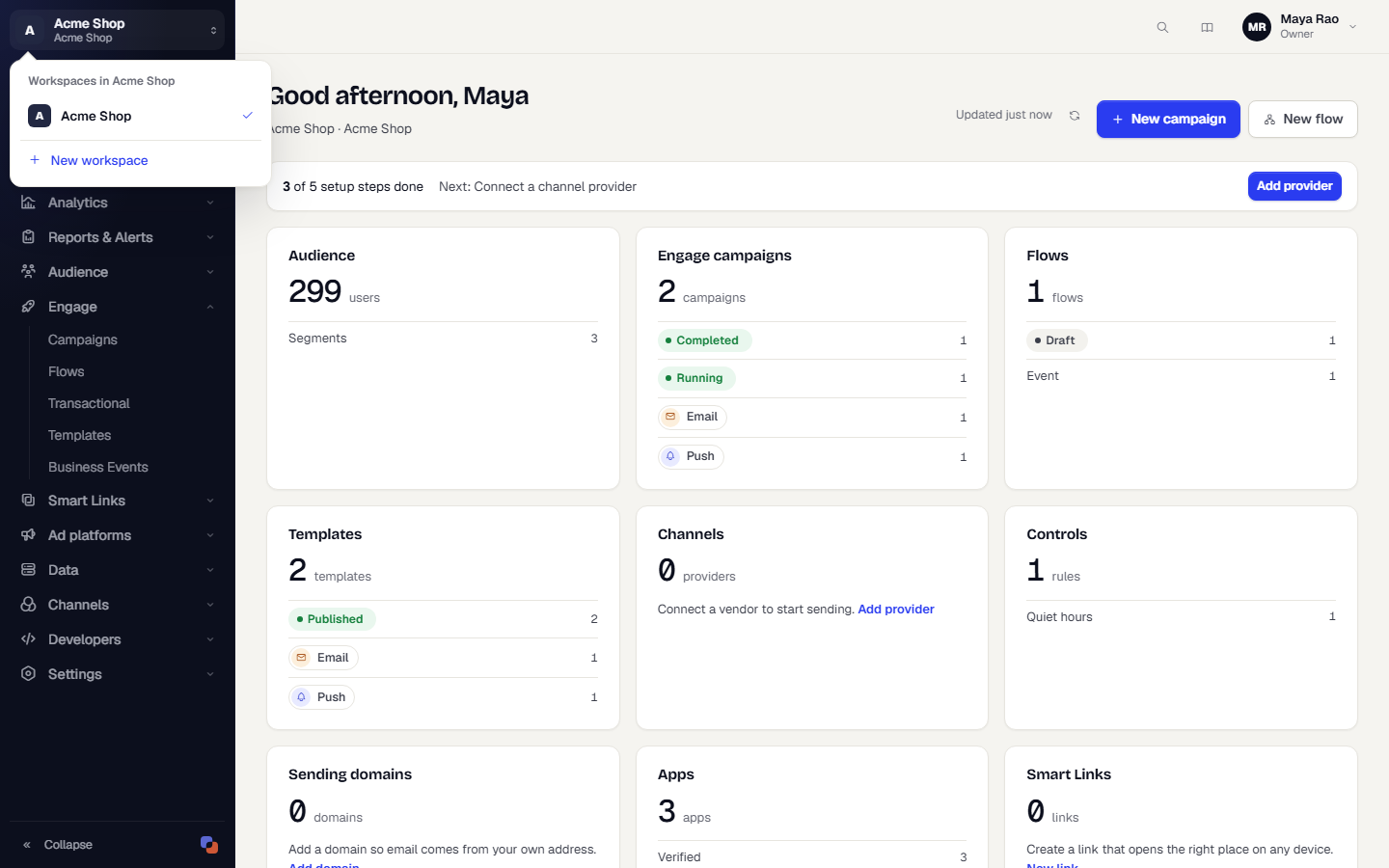
Select the workspace name at the top of the sidebar. The list shows every workspace you can open. Pick one to switch, or select New workspace to create another. You stay in the same environment when you switch.
Search and jump (Ctrl K or Cmd K)
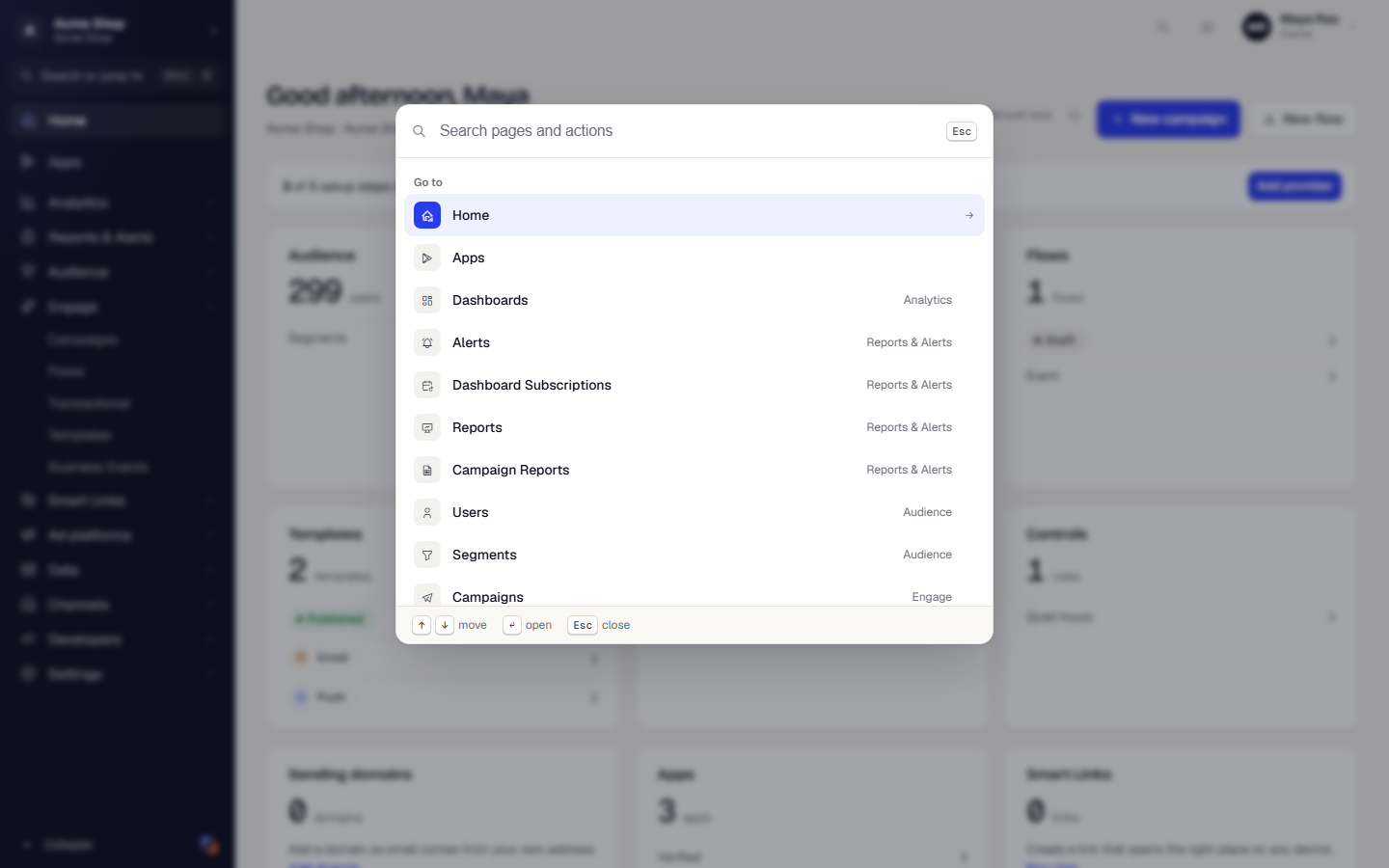
Press Ctrl K on Windows and Linux, or Cmd K on a Mac, from any page. You can also select Search or jump to in the sidebar, or the search icon in the top bar. Type to filter, move with the arrow keys and press Enter.
The palette lists:
- Go to: every page you can open.
- Analytics, Reports & Alerts and Audience: dashboards, funnels, reports, alerts and RFM segments.
- Create: New campaign, New flow, New segment, New link, New QR code and New template, when your role can create them.
- Workspace: switch environment, open another workspace, or expand or collapse the sidebar.
- Help and Account: Open documentation, Profile & security and Sign out.
The top bar
Besides the Test and Live switch, the top bar has the search icon, a link to the documentation and your account menu. The account menu opens Profile & security and Marketing site, and lets you Sign out.
The Home page
Home shows what your workspace holds and what to do next. It greets you by name and shows the workspace and organisation name under the greeting.
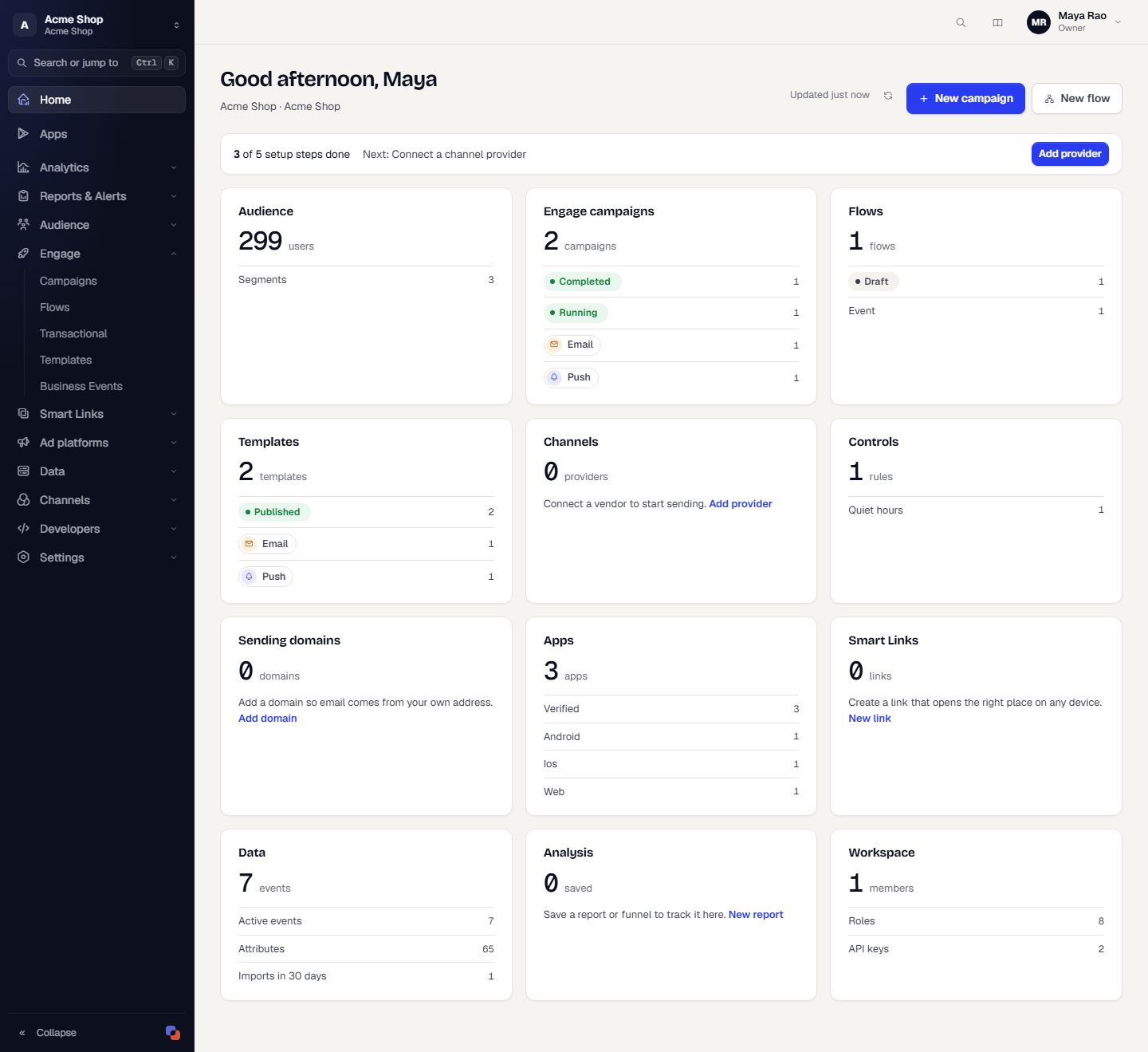
- Setup bar. A bar reads 3 of 5 setup steps done and names the next step, with a button that takes you there. The five steps are: connect a channel provider, verify it, create a template, build a segment, then launch a campaign or flow. The bar disappears when all five are done.
- Needs attention. Appears only when something needs you, such as a failing or unverified channel provider, a sending or link domain waiting for DNS, an app that is not verified yet, a data import that needs attention, or a paused campaign or flow. Each line links to the page that fixes it.
- Count cards. Each card shows a total and a short breakdown, and the title links to the page. The cards are Audience, Engage campaigns, Flows, Templates, Channels, Controls, Sending domains, Apps, Smart Links, Data, Analysis and Workspace. You only see cards for areas your role can view. A card with nothing yet shows a short prompt and a button to start.
- New campaign and New flow buttons at the top, and a refresh button that shows when the numbers were last updated.
Home shows counts only. For performance figures, use Analytics.
Related
Was this page helpful?