Flow settings
Configure a flow entry limit, end date, control group percentage, goal exits, quiet hours and frequency caps on the Settings tab of a flow.
The Settings tab has four sections: Entry and lifetime, Control group, Link tracking (UTM) and Delivery rules. Pick one from the list on the left. The page address remembers the section, so a link you share opens the same one. The tab controls how often people may enter, when the flow stops, whether a share of people is held out, and how the flow treats quiet hours and frequency caps.
Before you start
You need the create and manage permission for flows.
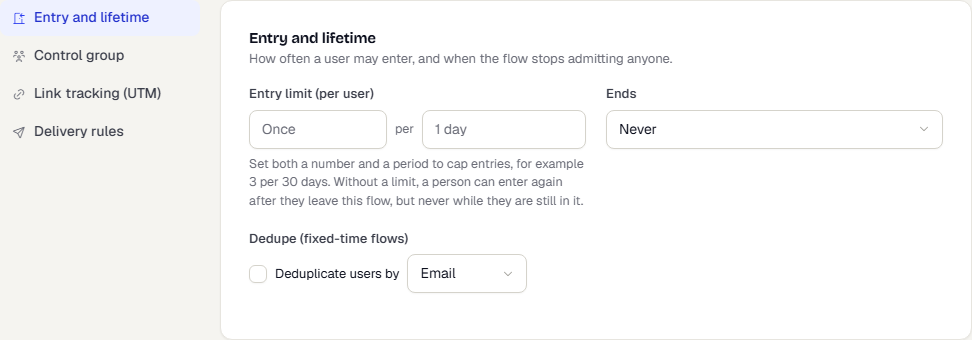
Entry and lifetime
| Setting | What it does |
|---|---|
| Entry limit (per user) | How many times a person may enter in a window, for example 3 per 30 days. Set both a number and a period to cap entries. Without a limit, a person can enter again after they leave this flow, but never while they are still in it. |
| Ends | Never, On a date (enter an ISO date and time with offset, such as 2026-12-31T00:00:00+05:30) or After N occurrences. |
| Deduplicate users by | For Fixed time flows. Tick it and choose Email or Phone so one person with several profiles enters once. |
Control group
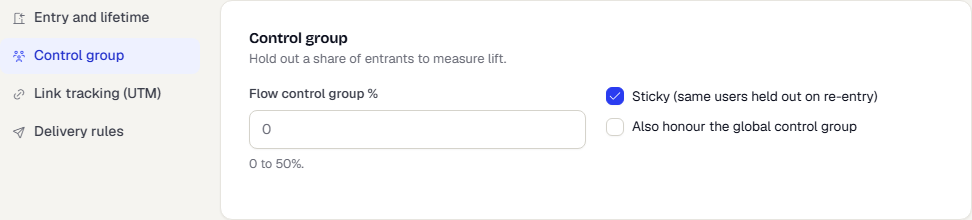
A control group is a share of entrants who go through the flow without receiving its messages. Comparing them with everyone else gives the flow's lift.
| Setting | What it does |
|---|---|
| Flow control group % | 0 to 50%. |
| Sticky (same users held out on re-entry) | On by default. A held-out person is held out again if they re-enter. |
| Also honour the global control group | Also hold out people in the workspace's global control group. |
Link tracking (UTM)
Links in the messages a flow sends can carry UTM values, so your analytics tool can tell which flow a visit came from. The workspace sets the defaults. See UTM defaults. This section lets one flow use its own values.
| Setting | What it does |
|---|---|
| Source | utm_source. Where the traffic comes from, such as lifecycle. |
| Medium | utm_medium. The kind of message, such as email or push. |
| Campaign | utm_campaign. Names this flow in your analytics. |
| Content | utm_content. Optional. Tells links or variants apart. |
Each box shows the workspace value as its placeholder. Anything you leave blank follows the workspace default. A line above the boxes reads Using workspace defaults, or how many values this flow overrides. Select Use workspace defaults to clear every override.
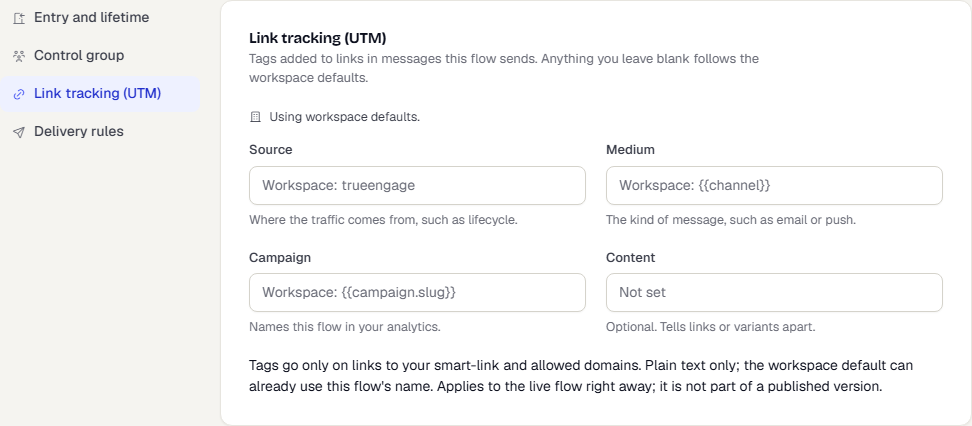
Values are plain text: letters, digits, spaces and _ . : | ~ + -, up to 100 characters, with no {{ }} tokens. Tags go only on links to your smart-link and allowed domains. If workspace tagging is off, a note tells you that no link is tagged yet whatever you set here, with a link to turn it on.
A flow's values apply to the live flow right away, not to a published version. Per key, the flow's value wins over the workspace default. A dry run shows which values would be used. See Test and debug a flow.
Delivery rules
| Setting | What it does |
|---|---|
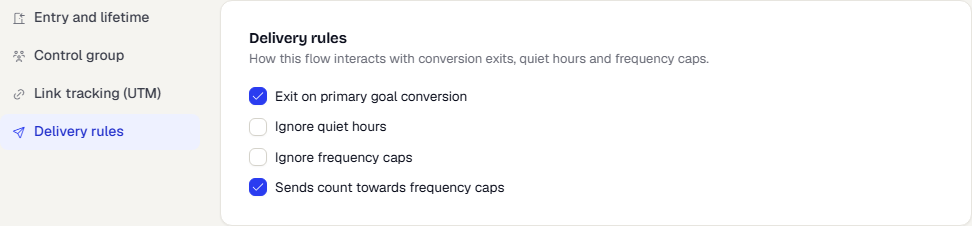
| Exit on primary goal conversion | On by default. A person who reaches the primary goal leaves the flow. |
| Ignore quiet hours | Off by default. Turn on to send during quiet hours. |
| Ignore frequency caps | Off by default. Turn on to bypass caps. |
| Sends count towards frequency caps | On by default. |
Turning on Ignore quiet hours or Ignore frequency caps means these messages can reach people at times and rates you otherwise block. Use it only for messages that must arrive.
What happens next
Settings are saved with the flow. See Save and publish a flow.
Was this page helpful?