Monitor a flow
Read flow stats and goal lift, inspect runs and instances, and run, pause, stop or archive a flow.
Open a flow from the Flows list to see how it is doing. The page shows a summary, delivery totals, the canvas and tabs for runs, instances, recipients, goals and configuration. Select the refresh button in the page header to reload instances and stats.
Before you start
You can view flows with the view permission. Publish, Run now, Enter a user, Exit this user and the More actions menu need the create and manage permission. Publishing needs the publish permission.
A draft flow has no runs or instances yet. The screenshots on this page show an active flow with sample numbers.
The flow page has these tabs: Canvas, Stats, Debug, Dry run, Runs (for scheduled and segment-triggered flows), Instances, Recipients, Goals and Configuration. Stats, Debug and Dry run are covered in Test and debug a flow.
The summary
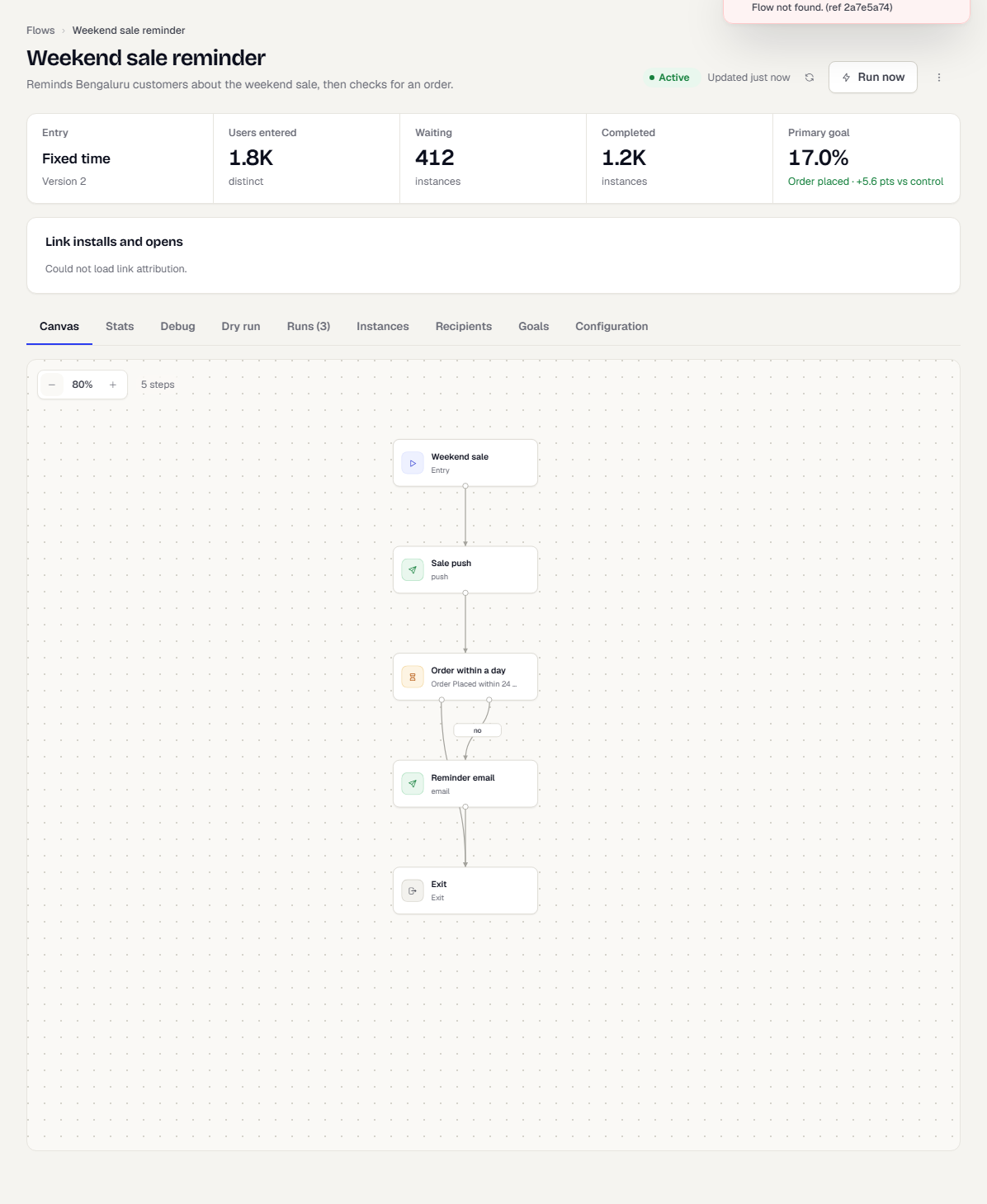
The cells show:
| Cell | Meaning |
|---|---|
| Entry | The entry type and the published version. |
| Users entered | Distinct people who entered. |
| Instance counts | The two largest groups, such as Waiting and Completed. |
| Primary goal | Conversion rate, and the lift in points against the control group when there is one. |
A banner above the cells shows the result of Validate.
Below the summary, a second row shows delivery across all runs: Sent (of how many were targeted), Delivered, Opened, Clicked and Failed or skipped. Delivered is a share of sent. Opened and clicked are shares of delivered. If you can view smart links, a Link installs and opens card shows installs and opens attributed through smart links in this flow's messages. See Smart Links overview.
Header actions
| Action | Where | What it does |
|---|---|---|
| Publish | Draft, paused or stopped | Publishes after you confirm. See Save and publish a flow. |
| Run now | Active flows that enter by schedule or business event | Queues a run now. Variables resolve before the audience is built. |
| Enter a user | Active API flows | Opens a dialog to admit one person. |
| More actions | Always | Edit draft, Validate, Pause, Resume, Stop and Archive, depending on status. Pause shows for Active flows, Resume for Paused ones, Stop for Active or Paused ones and Archive for Draft or Stopped ones. |
Select Stop and confirm in Stop flow?: active instances are cancelled and nobody else enters. Archive keeps the history but the flow can no longer be edited.
Enter a user
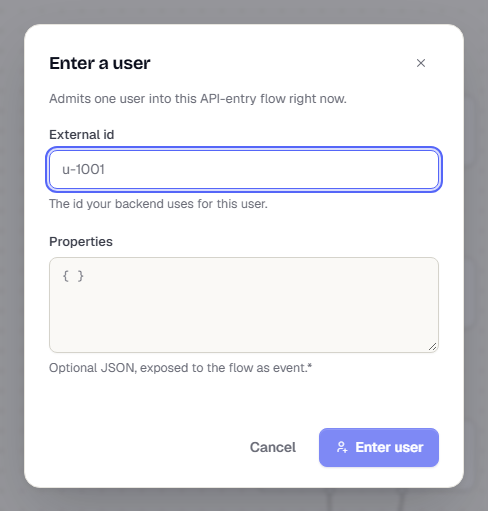
In Enter a user, type the External id your backend uses. Optionally add Properties as JSON, which the flow reads as event.*. Select Enter user. See also Enter a user into a flow.
Runs
Flows with a schedule or a business event entry have a Runs tab. Each firing is a run.
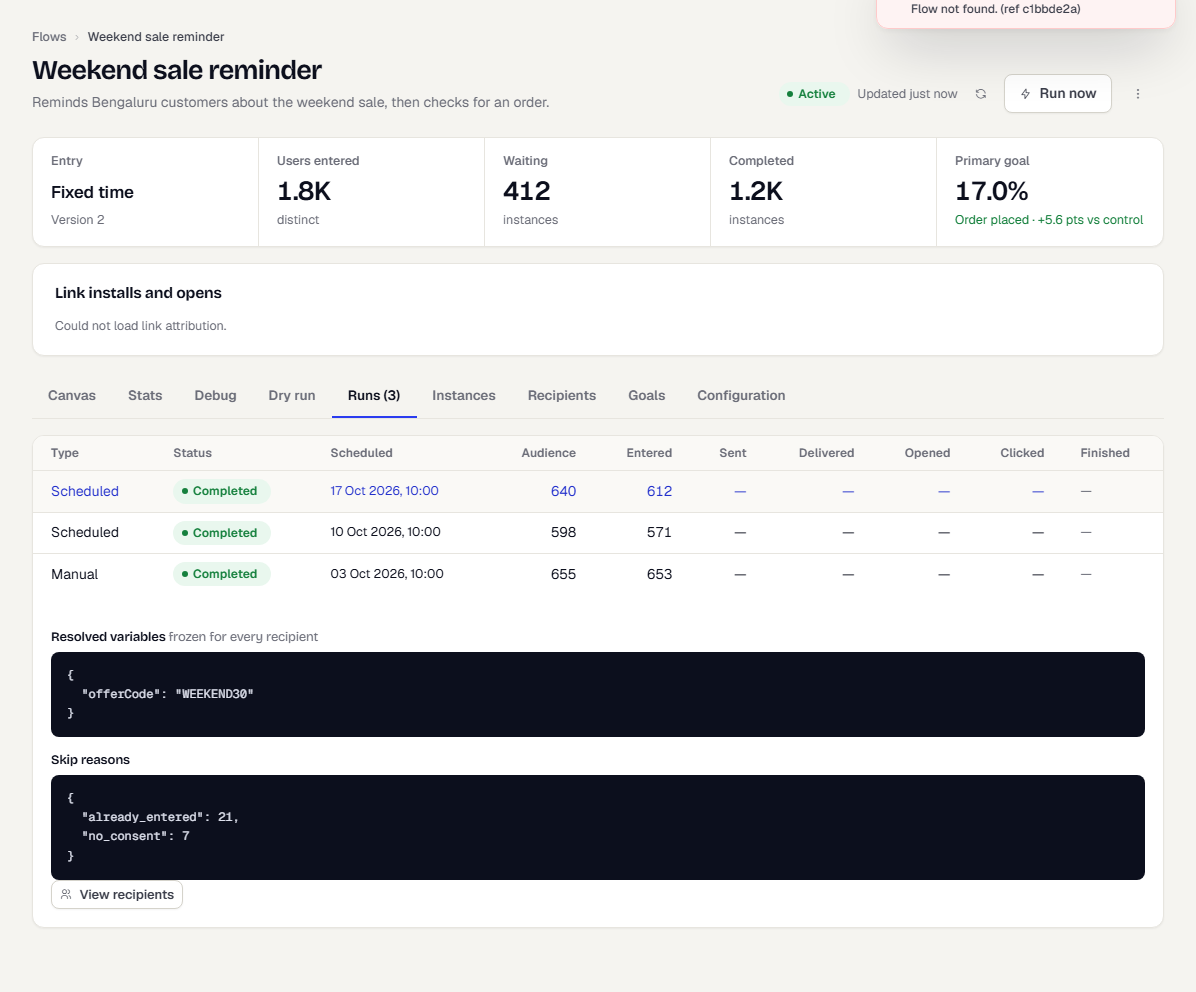
Columns: Type, Status, Scheduled, Audience, Entered, Sent, Delivered, Opened, Clicked and Finished. Select a row to see Resolved variables (frozen for every recipient) and Skip reasons. View recipients jumps to that run in the Recipients tab. An aborted run says it stopped before any message was sent.
Instances and the instance inspector
An instance is one person's journey through the flow.
- Open the Instances tab. Filter with Any status: Active, Waiting, Completed, Exited, Failed or Cancelled.
- Select a row to open the Instance inspector.
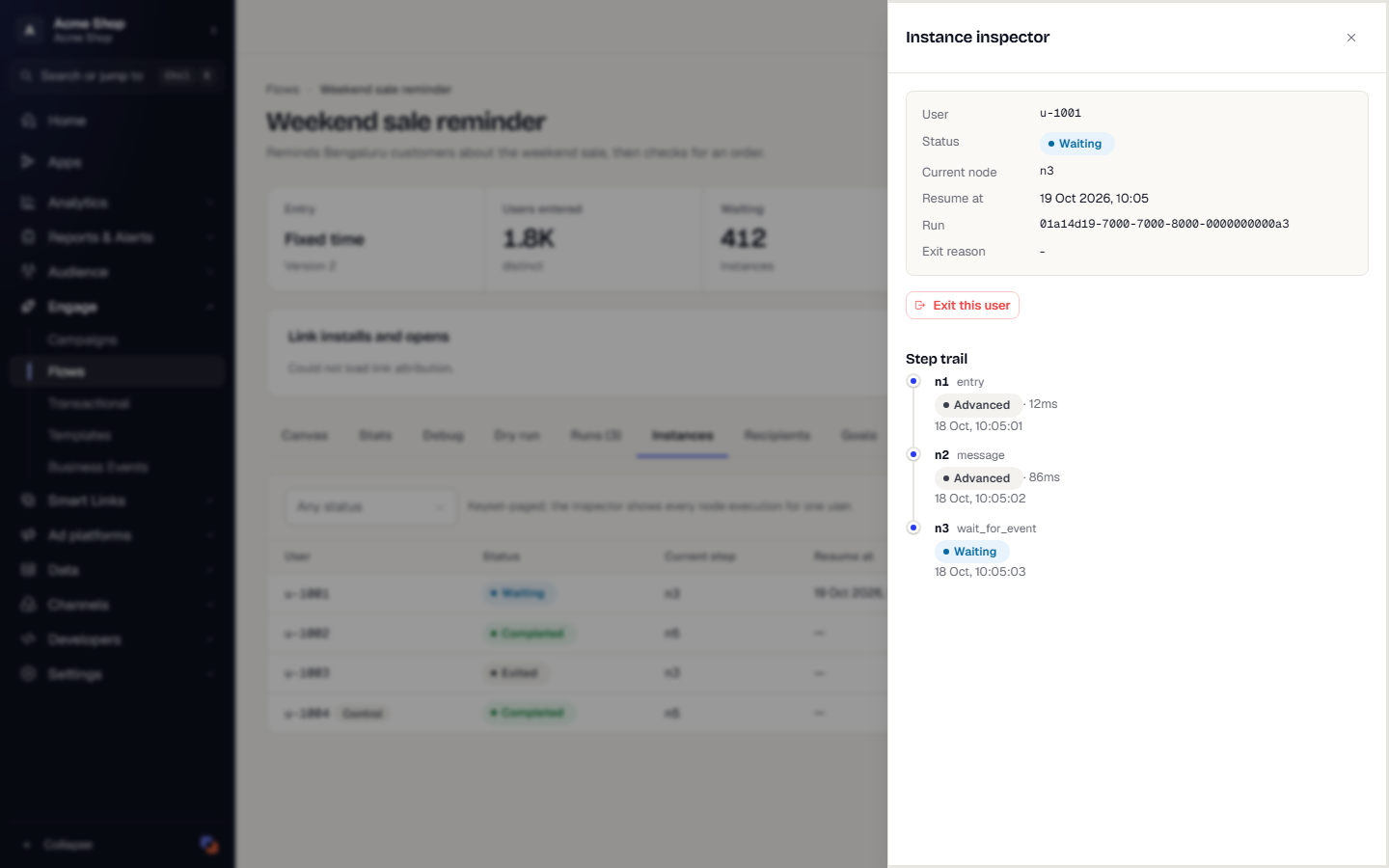
The inspector shows the user, status, current node, resume time, run and exit reason. Step trail lists every step the person went through, with its outcome, the branch taken and how long it took. Control next to a user means they are in the control group and received no messages.
To remove one person from the flow, select Exit this user. Use Load more at the bottom of the list for more rows.
Recipients
The Recipients tab lists one row per message the flow sent. It works like the campaign tab: pick a Run, filter with the outcome chips, read Progress and Why not, and select Load more for the next page. Contact details are masked. See The Recipients tab.
Goals and lift
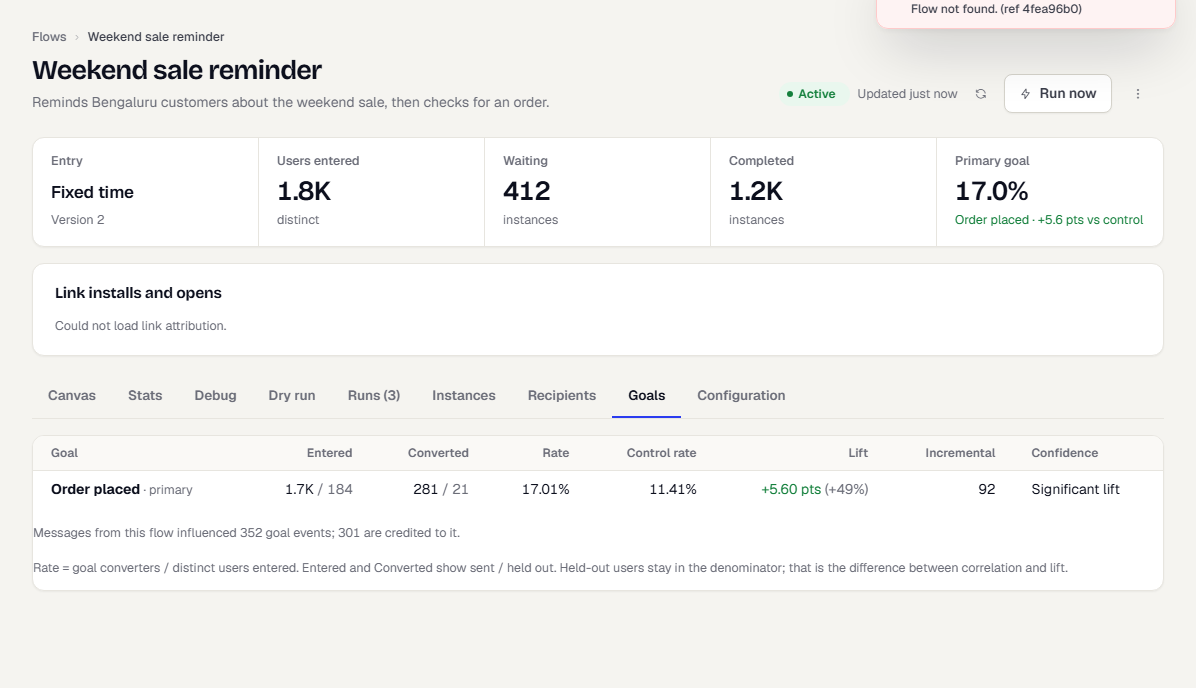
| Column | Meaning |
|---|---|
| Entered, Converted | People who were sent messages, and after a slash, people held out. |
| Rate | Converters divided by distinct people who entered. |
| Control rate | The same for the held-out group. |
| Lift | Rate minus control rate, in points, with the relative change in brackets. |
| Incremental | Conversions the flow added over what these people would have done anyway. |
| Confidence | Significant lift, Not significant yet, Significant drop or Not enough data. |
Held-out people stay in the denominator. That is the difference between correlation and lift. Set a control group in Flow settings. Goals are defined under Set goals and exits.
If other campaigns or flows reached the same people, a note shows how many goal events this flow influenced and how many are credited to it. Each goal event is credited to one source.
Configuration
The Configuration tab shows the flow's saved definition as JSON, read only.
Was this page helpful?