Create a segment from a file
Turn a CSV of IDs, emails or phone numbers into a segment of people you already have, then replace or add to it with a new file.
A file segment is a segment built from a list, not from rules. Upload a CSV of user IDs, email addresses or phone numbers, and the people who match become the segment's members. Use it for a webinar guest list, a partner's customer list or any group that rules cannot describe.
Only people you already have can be members. Rows that match no one are skipped, not saved.
Before you start
- You need permission to manage segments.
- Your file must be a CSV or plain text file of up to 100,000 rows and 10 MB. For larger lists, split the file and upload the parts one after another.
- You cannot download the list back out of the console. The segment stores who matched, never the IDs, emails or phone numbers in the file.
Create the segment
- In the sidebar, open Audience, then Segments.
- Select Upload a list.
- Enter a Segment name, such as "Webinar attendees, October". Optionally add a Description, such as where the list came from.
- Under Each row holds a, choose what the file contains: External ID, Email or Phone.
- Select Choose a CSV file, or drop the file onto the box. One row per person. A header row is optional, for example
email.
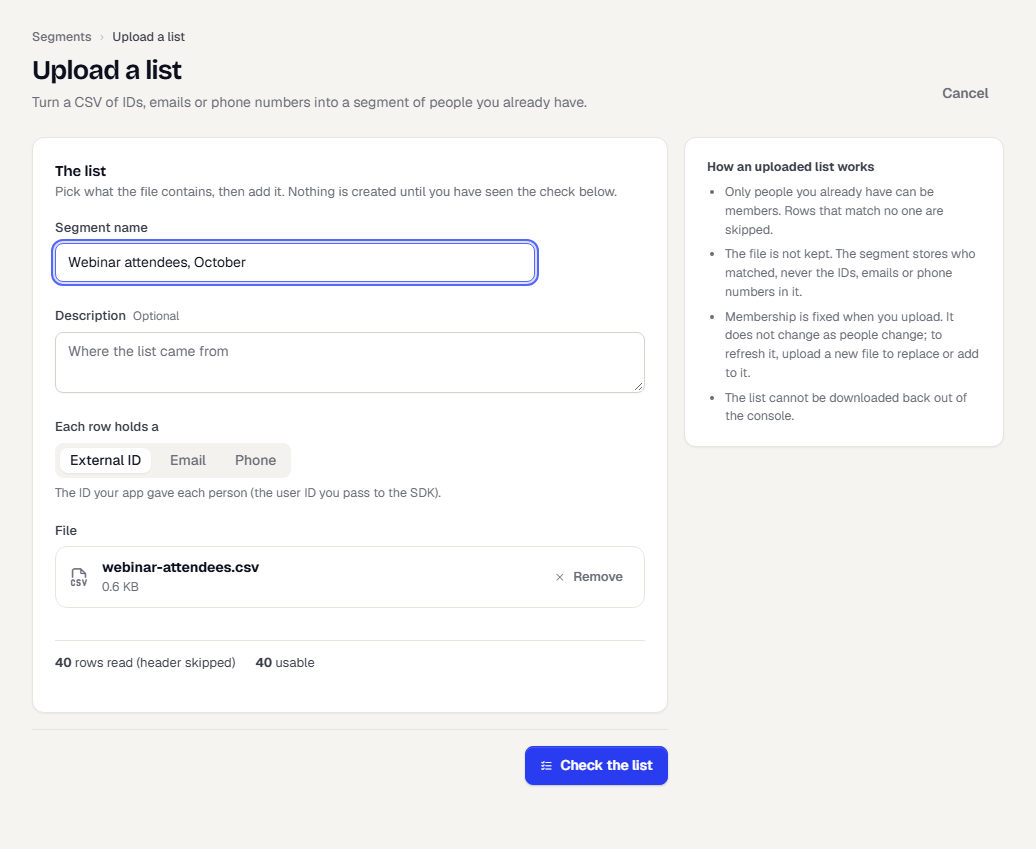
The page reads the file at once and shows how many rows it found, how many are usable, how many are repeated and how many are not a valid ID, email or phone number.
- Select Check the list. TrueEngage matches the rows to people and shows a result. Nothing is created until you have seen it.
The Check result shows Rows, Usable, Repeated, Invalid, Matched to people and No match, and a bar for the share of usable rows that matched someone. Open Sample of the list to see masked samples, and Rows that were skipped to see the row numbers that failed.
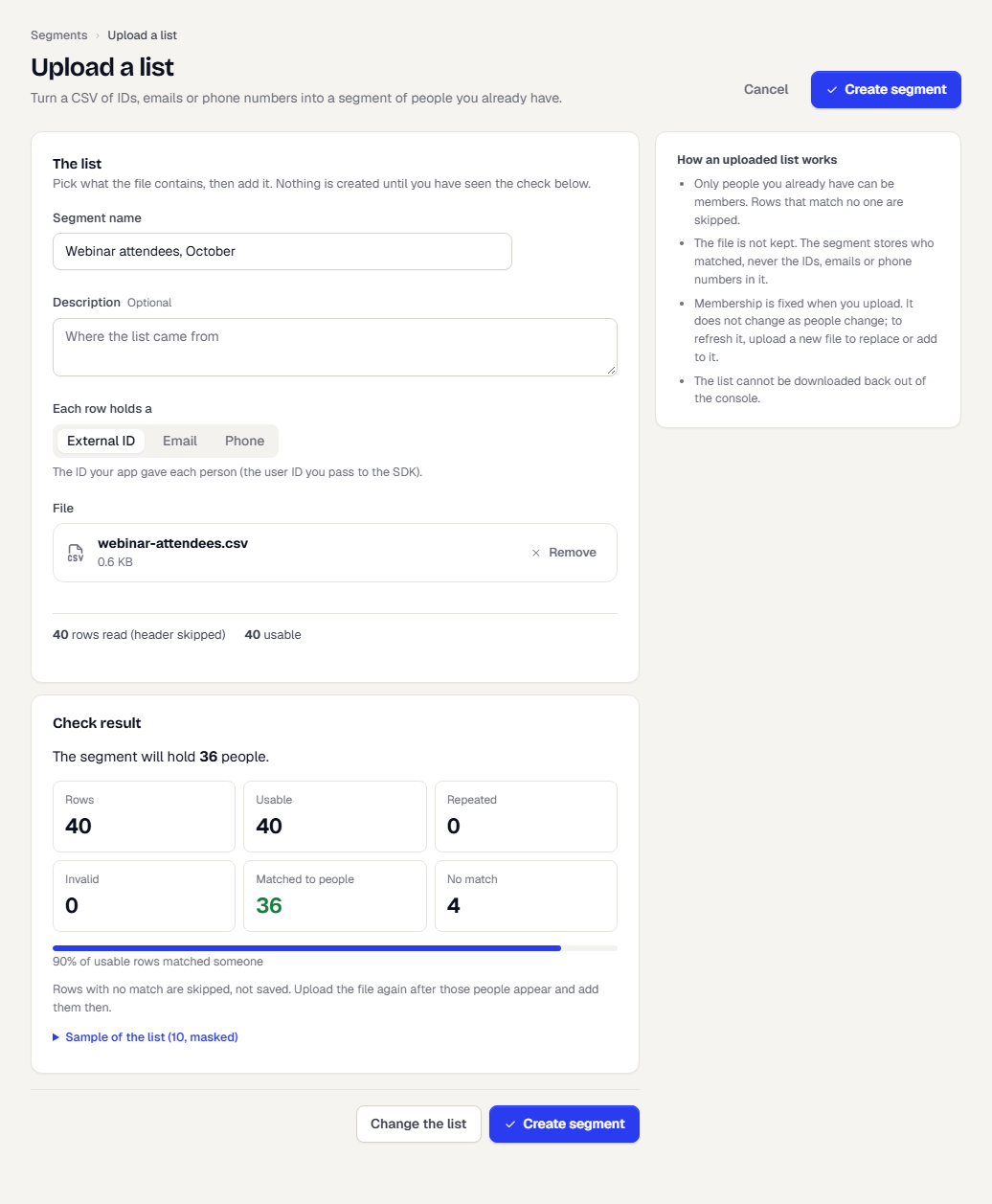
- If the result looks right, select Create segment. Otherwise select Change the list.
Update the segment with a new file
Membership is fixed when you upload. It does not change as people change. To update it, upload another file.
- Open the segment and select Update from a list.
- Under What should this file do?, choose Replace the members or Add to the members. Replace removes everyone who is in the segment now, and the people in the file become the members. Add keeps the current members and adds the people in the file.
- Choose the identifier, pick the file and select Check the list.
- Select Add these people or Replace the members.
In the segment list, an uploaded segment shows Uploaded list and Fixed at upload.
What happens next
Use the segment like any other: target a campaign with it, or use it in a flow. If rows were skipped because the people did not exist yet, upload the file again once they appear and add them then.
Related
Was this page helpful?