Find and manage flows
Find, filter and open flows on the Flows list in Test or Live, reading the Entry, Status, Version and Steps columns, and start a new flow from the page.
The Flows page lists every flow in the current environment, Test or Live. Use it to find a flow, check its status and start a new one.
Before you start
You need to be able to see Flows in the Engage section. To create flows you also need the create and manage permission. See Team and roles.
Open the list
- In the sidebar, open Engage and select Flows.
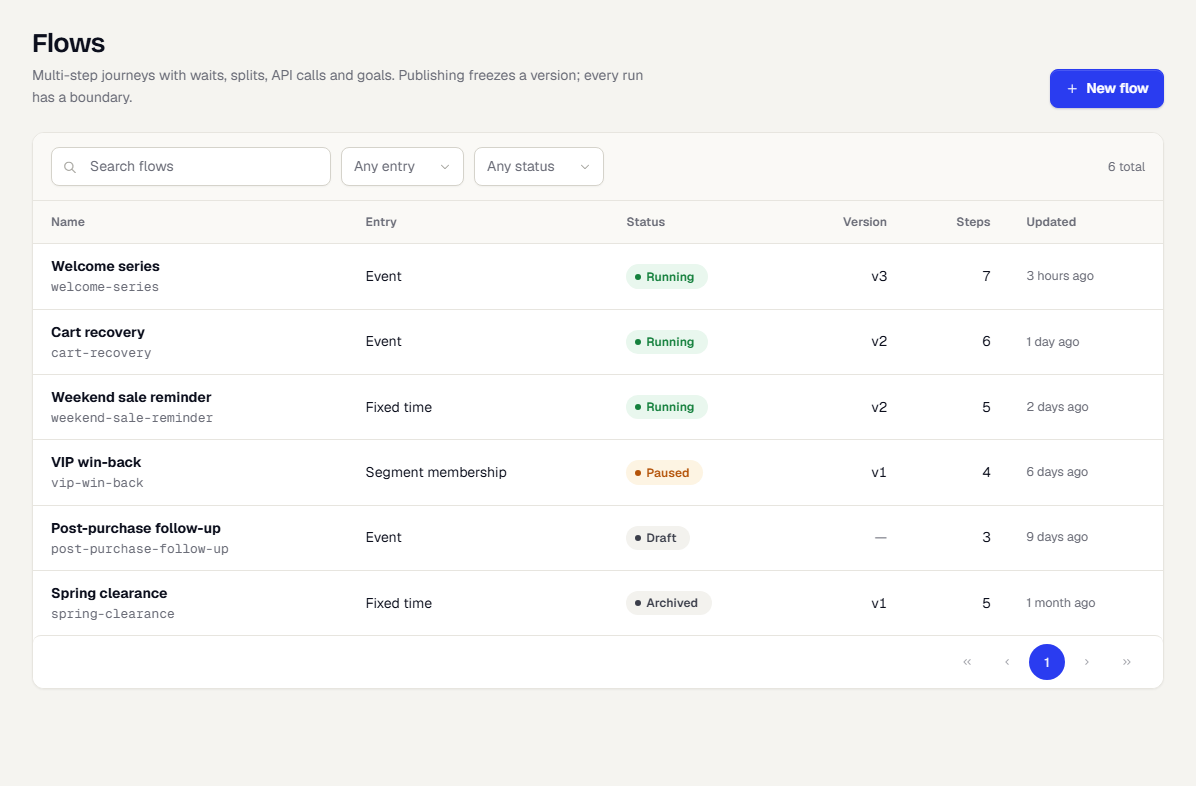
Each row shows:
| Column | Meaning |
|---|---|
| Name | The flow name, with its slug underneath. |
| Entry | How people enter, for example Event or Fixed time. |
| Status | Draft, Running, Paused, Stopped or Archived. |
| Version | The published version, such as v2. Empty until the first publish. |
| Steps | How many steps are on the canvas. |
| Updated | When the flow last changed. |
Search and filter
- Type in Search flows and press Enter.
- Open Any entry to show one entry type only.
- Open Any status to show one status only.
The count on the right, for example 6 total, shows how many flows match. The list shows 25 flows per page. Clear a filter with the small cross in its box.
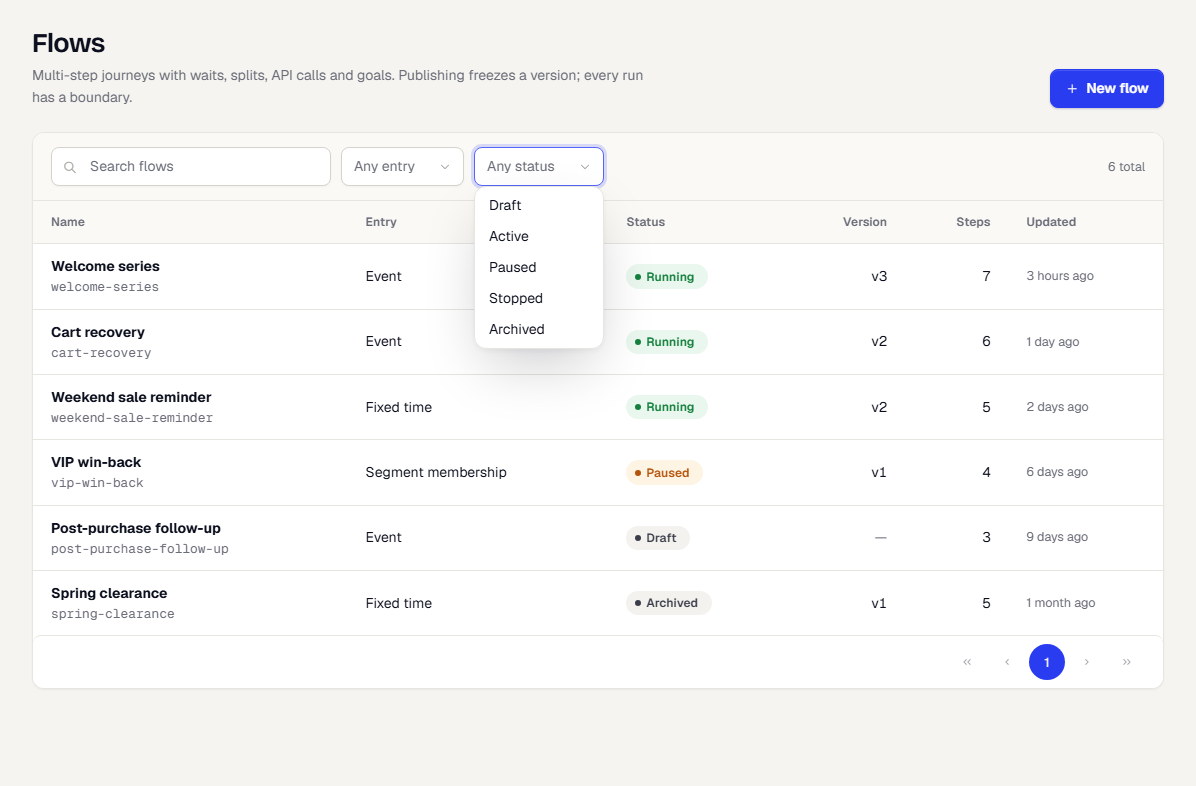
Open or create a flow
- Select a row to open the flow's detail page. See Monitor a flow.
- Select New flow to start a new one. See Build a flow on the canvas.
If you have no flows yet, the page shows Create a flow.
Was this page helpful?