Track delivery for a sender
Give your vendor the callback URL so messages move past Sent to Delivered, Failed or Read, and see whether statuses are arriving.
A vendor accepts a message, then tells you later what happened to it: delivered, failed, read. It does this by posting a status to a web address that you give it. That address is the callback URL. Until your vendor has it, messages from that sender stay at Sent.
The Delivery tracking tab shows you the URL, the steps to set it up at your vendor, and whether statuses are arriving.
Before you start
- You need a sender on the Senders tab of a channel. See Add and verify a provider.
- You need permission to manage channels to reveal the URL, rotate its token or change the security setting. With only view permission you can read the state and the health.
- Test and Live senders have different URLs. Set up each one.
See the state of every sender
Open Channels, choose a channel, and look at the Delivery tracking column on the Senders tab. Each sender has one chip:
| Chip | What it means |
|---|---|
| Receiving | Statuses from this sender are arriving, so messages move past Sent. |
| Not set up | The sender can report delivery, but your vendor does not have the URL yet. Messages stay at Sent. |
| Awaiting first status | Waiting for the vendor's first status. Send a test message. |
| No recent statuses | No status in 24 hours although messages were sent. Check the callback setting at your vendor. |
| Not tracked | This channel does not report delivery. Messages stay at Sent. |
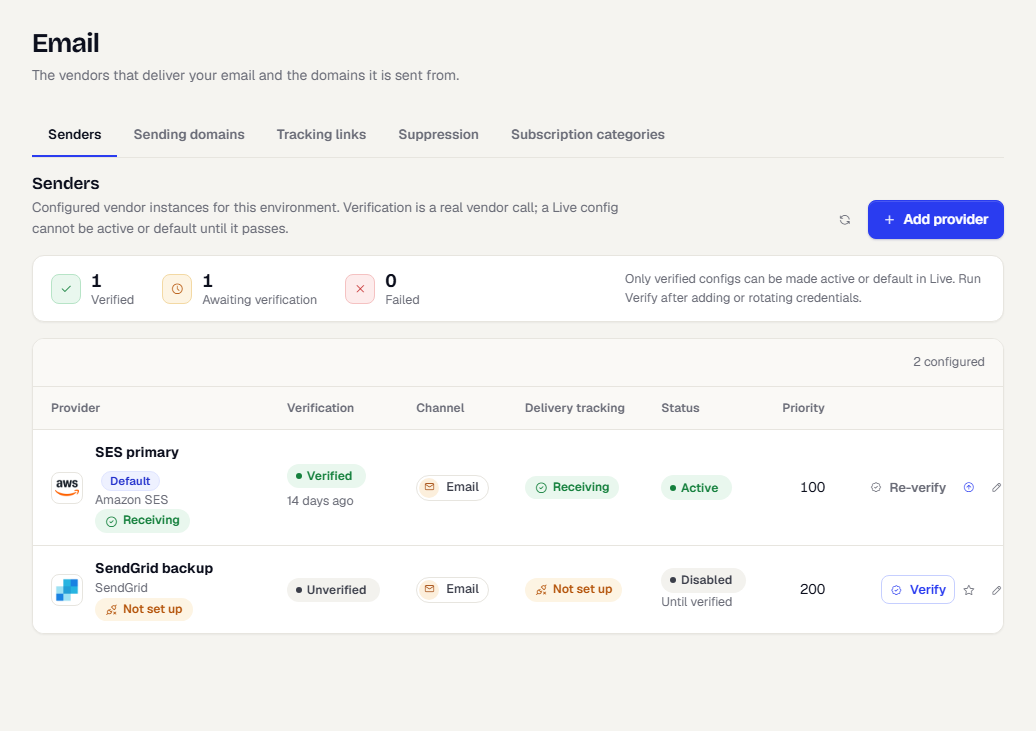
Select a chip to open that sender's Delivery tracking tab.
Set up the callback
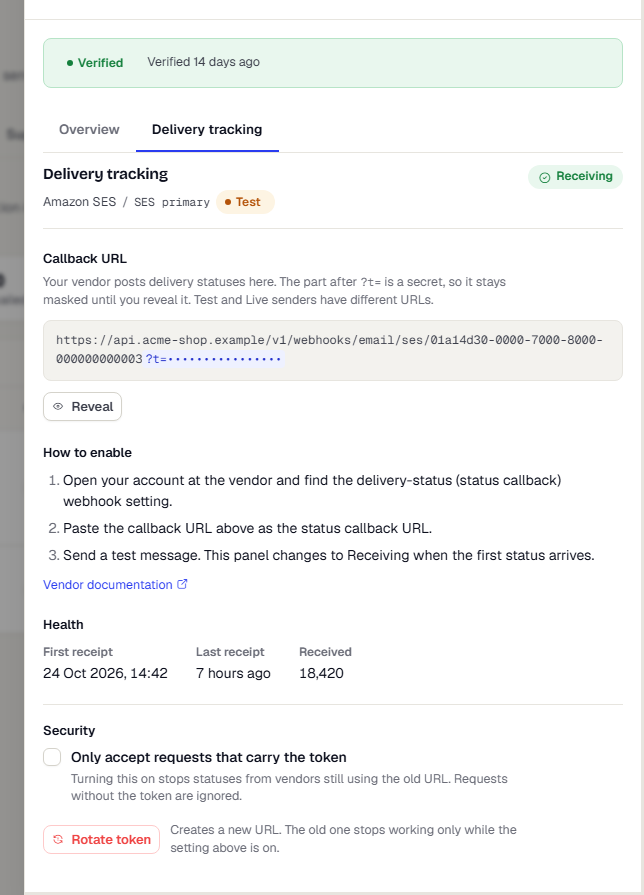
- Select a sender on the Senders tab, then open the Delivery tracking tab.
- Under Callback URL, select Reveal. The part after
?t=is a secret, so it stays hidden until you ask. Revealing is recorded in the audit log, and the URL hides again after 30 seconds. - Select Copy URL.
- Follow the numbered steps under How to enable. They tell you where to paste the URL in your vendor's dashboard. Select Vendor documentation for the vendor's own guide.
- Send a test message to yourself.
For some vendors, such as Meta's WhatsApp Cloud API, the vendor checks the URL with a verify token instead of a token in the URL. The tab then asks you to add the Webhook verify token in the sender's credentials and to enter the same value at the vendor.
Check health
The Health section shows the First receipt, the Last receipt and how many statuses were Received. If you see No recent statuses, the vendor stopped posting. Check the callback setting at the vendor.
Secure the callback
Two controls sit under Security:
- Only accept requests that carry the token. Off by default, so a vendor that still uses an older URL keeps working. Turn it on once your vendor uses the URL above. TrueEngage then ignores any status that arrives without the token. It asks you to confirm first, because statuses from a vendor on the old URL stop arriving.
- Rotate token. Creates a new URL. The new URL is shown once, so copy it at once and give it to your vendor. The old URL stops working only while the setting above is on.
If your vendor is still using the old URL, the tab warns you: move it to the new URL, then turn on the setting.
What happens next
Once statuses arrive, messages move from Sent to Delivered, Failed or Read where the vendor reports them. Delivery and read numbers appear in your campaign and in the deliverability dashboard. You can also set an alert that tells your team when a sender goes quiet.
Related
Was this page helpful?