Send a one-time campaign
Send a one-time campaign to a segment at a set send time or with Run now, add a conversion goal and control group, then save and publish it in the wizard.
A one-time campaign sends one message to an audience at a single moment, such as a sale announcement. After it sends, it shows as Completed.
Before you start
- A published template for the channel you want. For this example, "Autumn Sale push".
- A segment, such as "Recent buyers".
- Permission to manage campaigns. Publishing needs the publish permission.
Steps
- Open Engage, then Campaigns, and click New campaign.
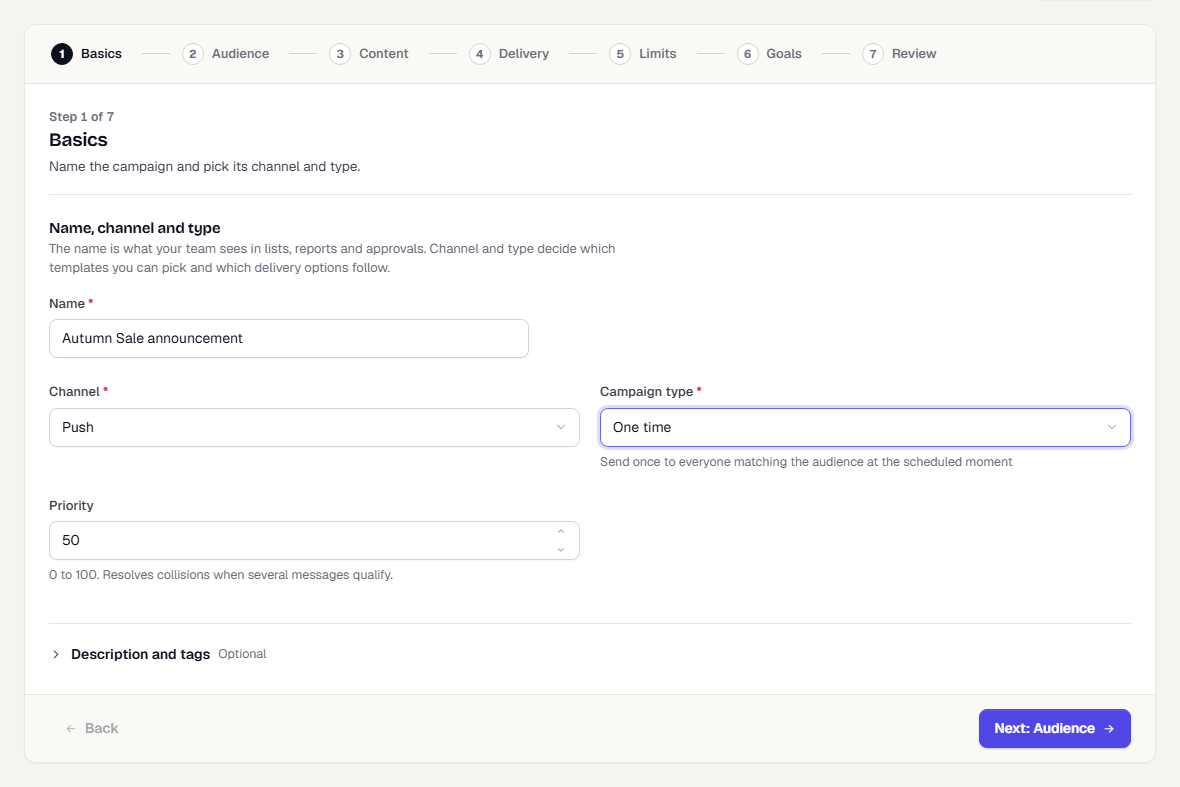
- Enter a Name, for example "Autumn Sale announcement". Choose the Channel, then set Campaign type to One time.
- Click Next: Audience. Choose Saved segment and pick "Recent buyers". For every option, see The campaign wizard.
- Click Next: Content and pick your Template.
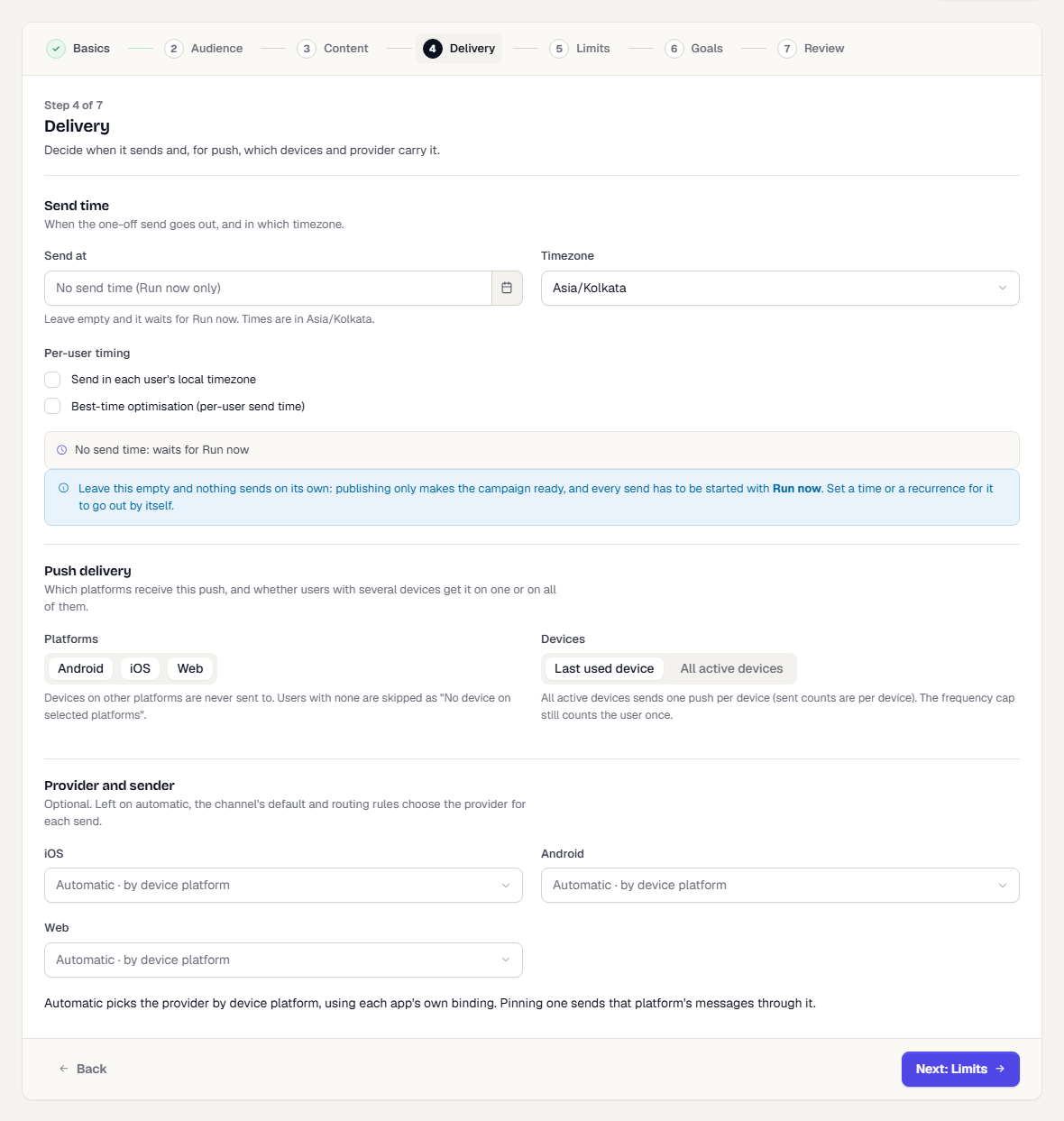
- Click Next: Delivery. Set Send at and check the Timezone. Leave Send at empty if you want to start the send yourself with Run now.
- Click Next: Limits, then Next: Goals. Add a conversion goal, for example Order Placed within 3 days, and optionally a Control group (set 10% to measure lift). See conversion goals and hold-out.
- Click Next: Review, check the checklist and summary, then click Save & publish. Use Save draft if you aren't ready.
What happens next
At the send time, TrueEngage resolves the audience, applies the send gate to each person, and dispatches. Follow it on the campaign page: Read a campaign's results. When it finishes, the status becomes Completed, and Run again starts a new run.
To move the campaign to Live, see Promote a campaign from Test to Live.
Was this page helpful?