Use files from the asset library in WhatsApp templates
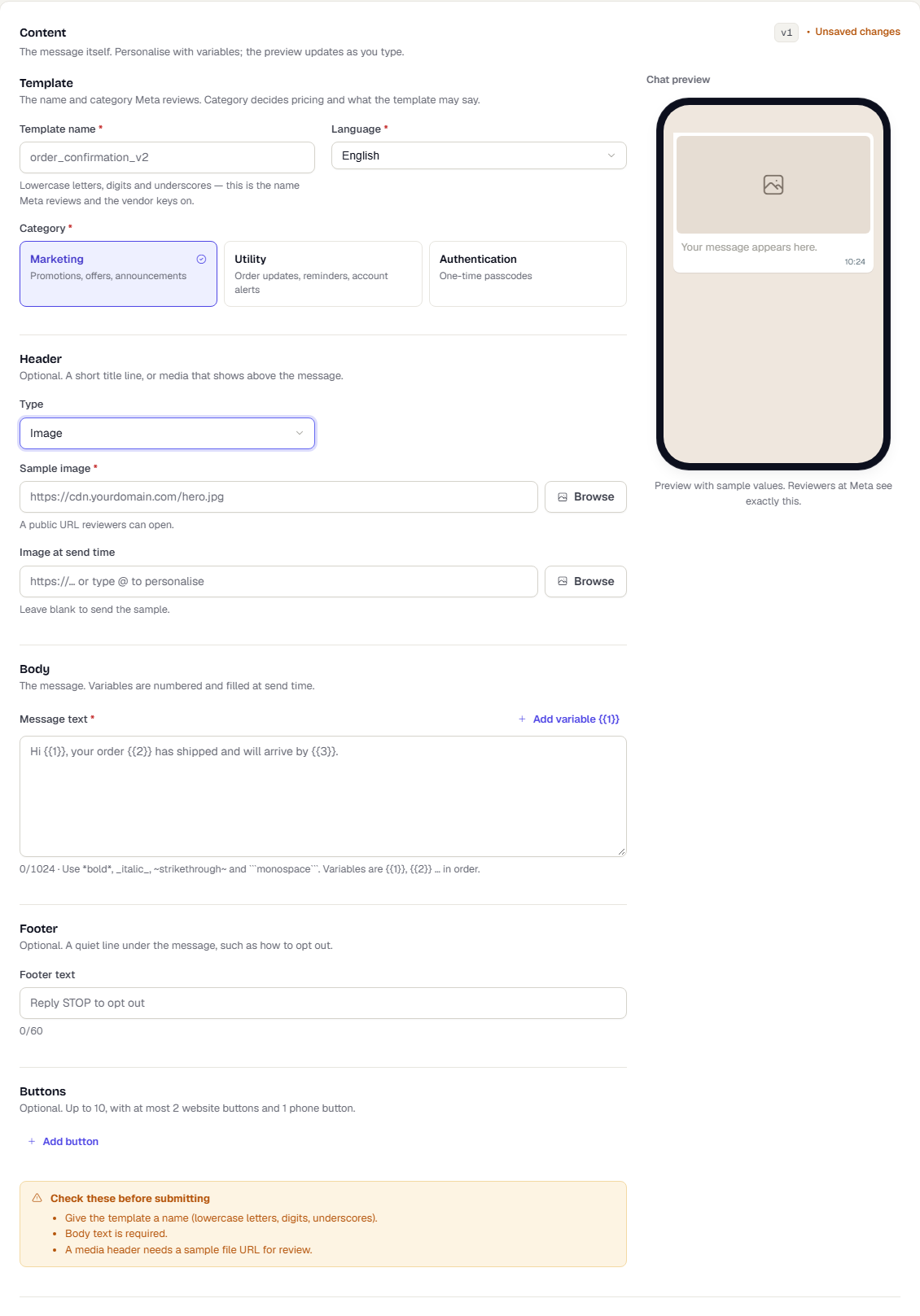
Pick an image, video or document from your storage library for a WhatsApp header.
WhatsApp headers can show an image, a video or a document. Instead of pasting a URL, you can pick a file from your workspace's asset library.
Before you start
- Upload your files first under Channels → Storage & Assets. See Storage.
- Only public files can be chosen. Vendors cannot fetch private files, so those are greyed out with the tooltip Not public: vendors cannot fetch this file.
- Open a WhatsApp template. The asset library is available in the WhatsApp designer.
Steps
In the Header section, set Type to Image, Video or Document.
Next to Sample image (or video or document), select Browse. The sample is what Meta reviewers see.
In the Choose image dialog, open a folder, or type in Search files. Select a file.
Select Use file. The URL of the file fills the field. Double-clicking a file does the same.
Optional: under Image at send time, select Browse to choose the file that real messages use. If you leave it blank, messages send the sample.
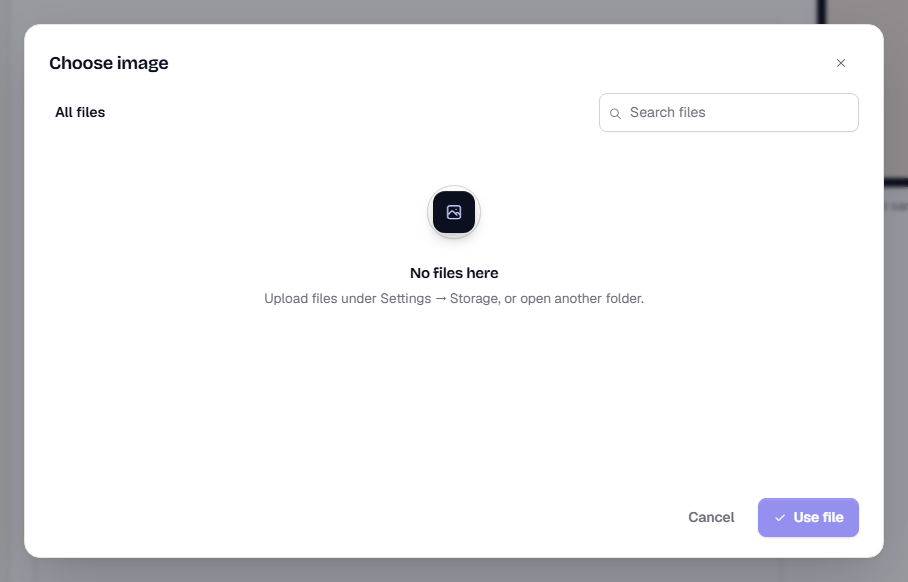
If the library has no files, the dialog says No files here. Upload files in Storage and try again.
Related
Was this page helpful?