Email a report on a schedule
Have a saved report emailed to your team every day, week or month, with an optional CSV, and see every schedule and its run history in one place.
A scheduled report sends the headline numbers of a saved report by email, on a repeating schedule. Your team gets the numbers without opening the console.
Before you start
- You need a saved report. See Build a report.
- You need permission to manage analytics to create, pause or delete a schedule. With only view permission you can see schedules and their history.
- Each schedule can email up to 20 people, and an environment can hold up to 50 active schedules.
- The email contains totals and tables only, never individual people. There is no per-person file.
Create a schedule
- Open a saved report in view mode. Select Schedule at the top of the page. If the report has schedules already, the panel lists them, and you select New schedule.
- On the When tab, choose Repeat: Every day, Every week or Every month.
- For a weekly schedule, choose the day under On. For a monthly one, enter On day (1 to 31). A shorter month runs on its last day, so 31 means the last day of every month.
- Set At (24-hour time) and the Time zone. The time stays on the clock through daylight saving changes. A line at the bottom of the tab sums up the schedule in words.
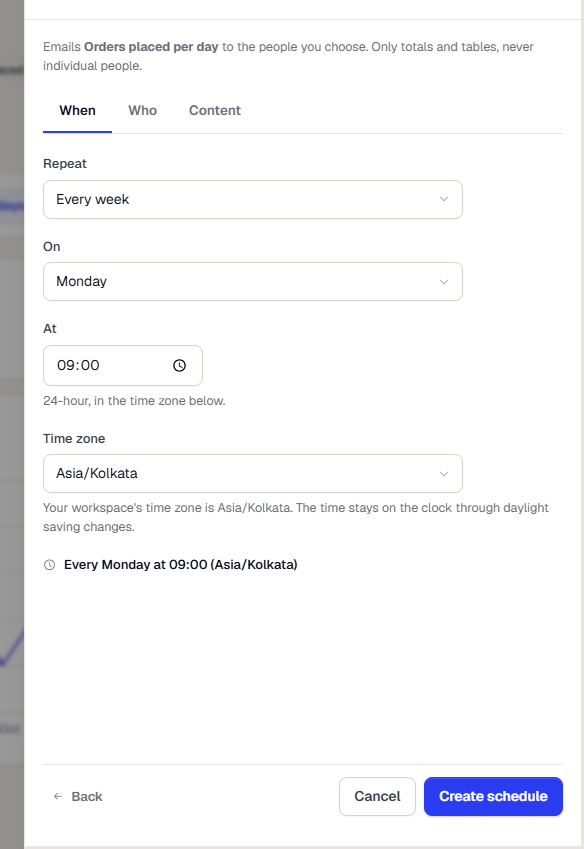
- Open the Who tab. Under People in this workspace, choose the members who should receive it. Their addresses are partly hidden here. A person who leaves the workspace stops receiving it.
- To email someone outside the workspace, turn on Allow addresses outside the workspace and enter them under Other email addresses. This is off by default, because report totals leave your workspace when it is on.
- Open the Content tab. Turn on Attach the table as a CSV file if you want the table that the report shows, totals only, limited to its first rows. If the table is longer, the email says it was cut.
- Select Create schedule.
Every email has a link to stop receiving it. A person who uses it is counted as opted out on that schedule only.
Manage schedules
In the sidebar, open Reports & Alerts, then Reports, and select the Schedules tab.
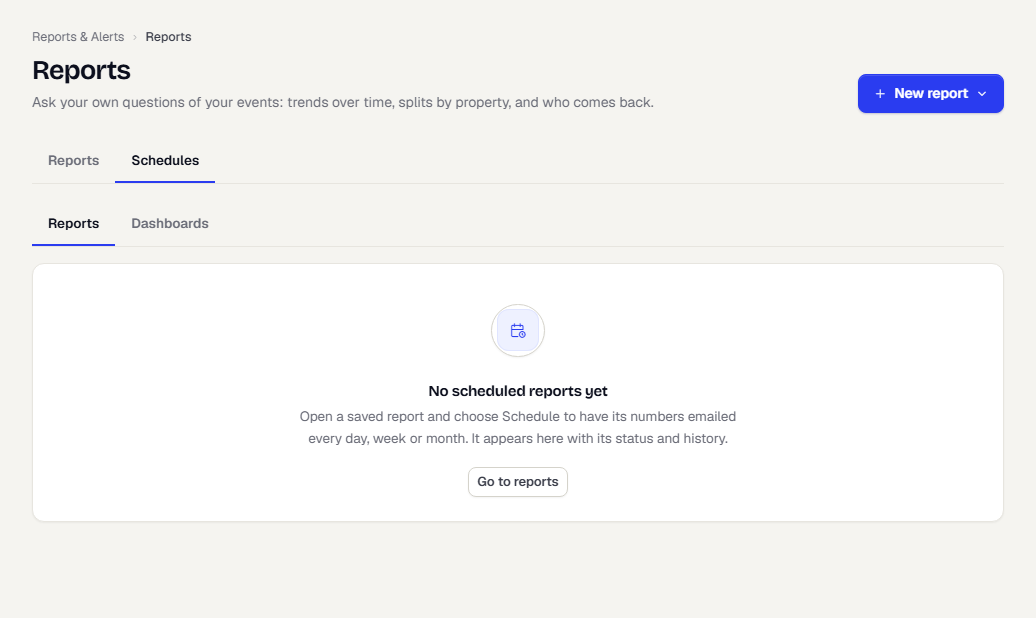
Each row shows the report, When it runs and in which time zone, its Status, the Last run, and how many Recipients it has. The icons on the right are:
- Email it to me now sends the report to you straight away, without waiting for the schedule. You can do this a few times an hour.
- Pause or Resume stops or restarts the schedule.
- Run history lists the last 20 runs and what happened to each. Only the result of each run is kept, never the report's numbers.
- Edit changes the schedule.
Email a dashboard on a schedule
You can also have a custom dashboard emailed, the same way. This is called a dashboard subscription.
- Open a custom dashboard and select Schedule email at the top of the page. If the dashboard already has a subscription, a line such as 3 recipients, weekly Mon 09:00 shows beside the button.
- Choose who receives it. Pick people under People in this workspace, and type or paste other addresses under Other email addresses. Press Enter, Space or comma to add an address. You can add up to 50 recipients.
- Choose the Frequency: Daily, Weekly (pick the day) or Monthly. Monthly can run on a day of the month (1 to 31; a shorter month runs on its last day) or on a weekday such as the first Monday or the last Friday.
- Set the Time. The time zone is your workspace's and is shown but not editable here. Select Subscribe.
What the email contains. The dashboard name and its date range, the headline value of each number and chart widget with the change from the previous period where the dashboard calculates one, the top 10 rows of list widgets, and a View dashboard button. Charts are not drawn in the email, and funnel, RFM, segment-size and built-in widgets are only named, so open the dashboard to see them. There is no attachment, and totals only, never individual people.
Dashboard subscriptions follow the same rules as scheduled reports: they run with the access of the person who created them, pause themselves if that access is lost or the dashboard is no longer available, skip a run with a reason when email is not set up or a limit is reached, and every email has a link to stop receiving it. Only custom dashboards can be subscribed to.
To manage them, open Reports, select the Schedules tab, then Dashboards. You can search by dashboard name or subscriber, expand a row to see its recipients, and use the row menu for Edit, Pause or Resume, Send now (to yourself) and Delete.
When a schedule pauses or skips
A schedule runs with the access of the person who created it. If that person loses access to the report, the schedule pauses itself and says why. A schedule also pauses when it has no recipients left or keeps failing.
A run is recorded as skipped, with a reason in plain words, when email is not set up on your installation, when a limit on emails per hour or per day is reached, or when a run is more than six hours late after downtime. After downtime only the latest missed run counts.
Related
Was this page helpful?