Open a segment
Read a segment's definition, compare its stored size with a live recount, and browse its members.
A segment's detail page shows who is in it, how the rule reads, and when it was last computed. Use it to check a segment before you target it, or to find out why someone is or is not a member.
Before you start
- Anyone who can view segments can open this page.
- Edit and Promote to Live appear only if you can manage segments. Refresh members and Archive are in the More actions menu (the three dots), which also offers Use in a campaign if you can manage campaigns.
- Sync to ads appears only if you can manage ad platforms.
- Membership is stored and refreshed on a schedule. Counts you see here can be a few hours old until you recount.
Open the page
- In the sidebar, open Audience, then Segments.
- Select a segment's row.
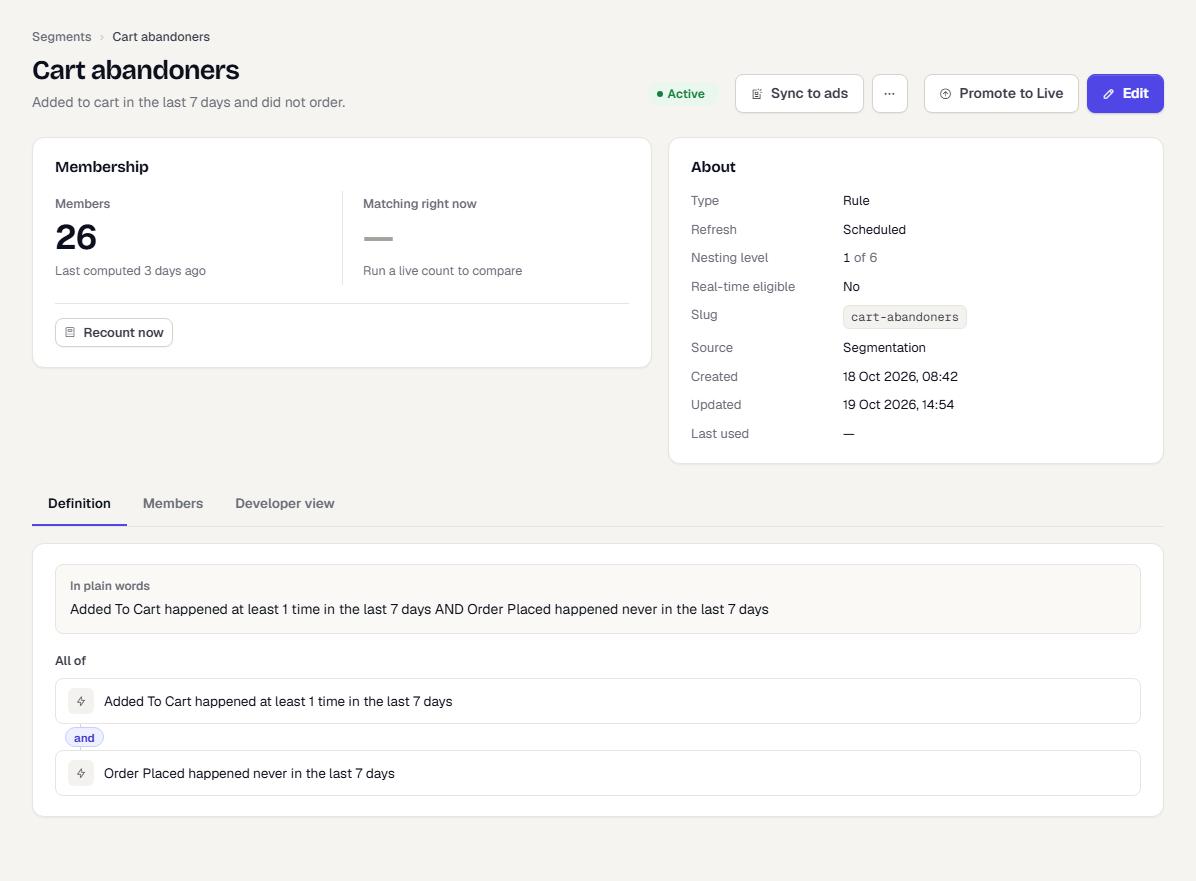
The page header shows the name, the description and the status (Active or Archived). In Test, a Promoted badge shows that the segment has already been copied to Live.
Read the Membership card
- Members is the stored count from the last computation, with Last computed and when. It shows a dash and Not computed yet for a new segment.
- Matching right now is a live count. It stays empty until you run one.
Recount now
The stored count lags behind your data. To see the live number:
- In the Membership card, select Recount now.
- Wait a few seconds. Matching right now shows how many users match today, out of how many users in total.
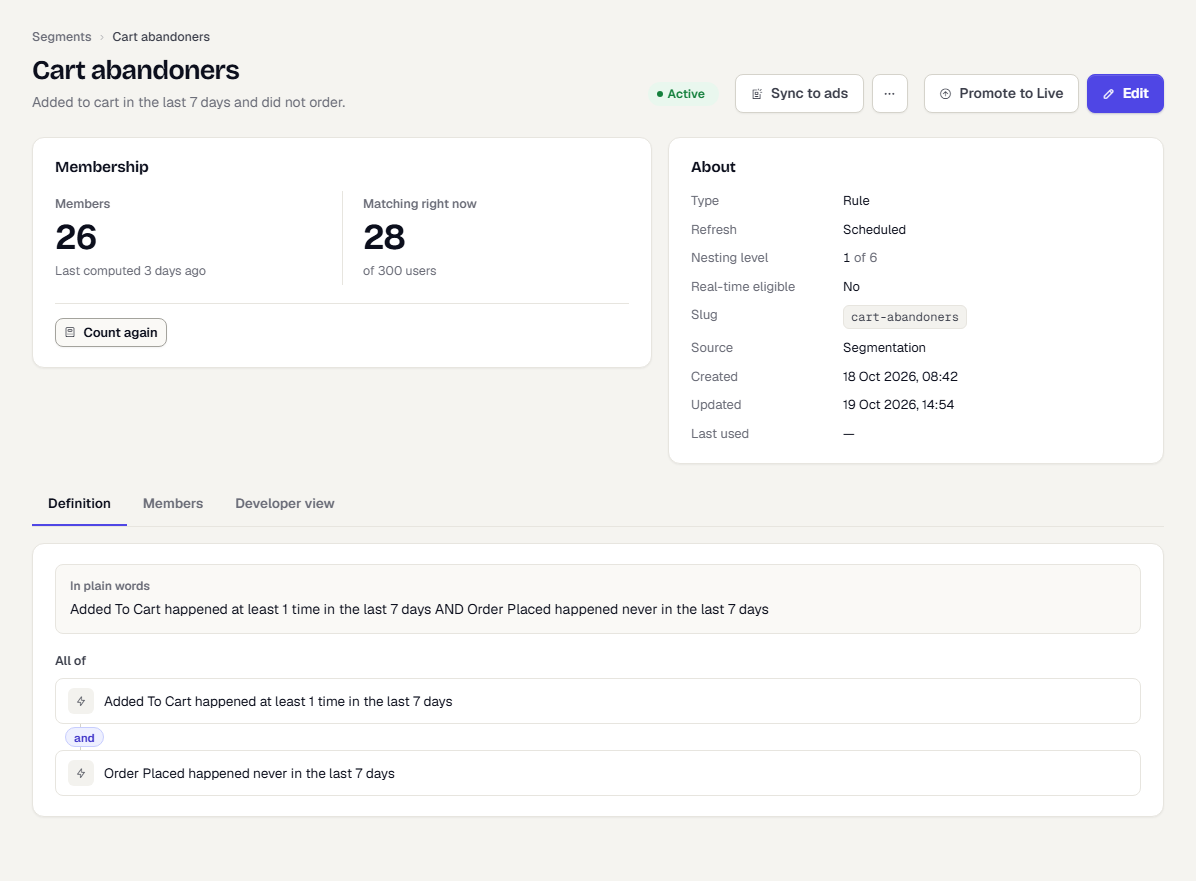
The button changes to Count again. If the live count is far from Members, the next scheduled refresh will catch up. To update the stored count right away, open More actions and choose Refresh members. A message says Refresh queued, and the new count appears once the computation finishes.
Snapshot segments, which hold a fixed list of people, have no recount or Refresh members.
Read the About card
| Field | What it tells you |
|---|---|
| Type and Refresh | How the segment is built and how often it recomputes. |
| Nesting level | How deep the segment sits when it references other segments, out of the maximum. |
| Real-time eligible | Whether the segment can run in real time. When it cannot, the reason is shown. |
| Slug | The segment's stable name for use elsewhere. It does not change when you rename the segment. |
| Source, Created, Updated, Last used | Where it came from and when it last changed or was last used. |
Read the definition
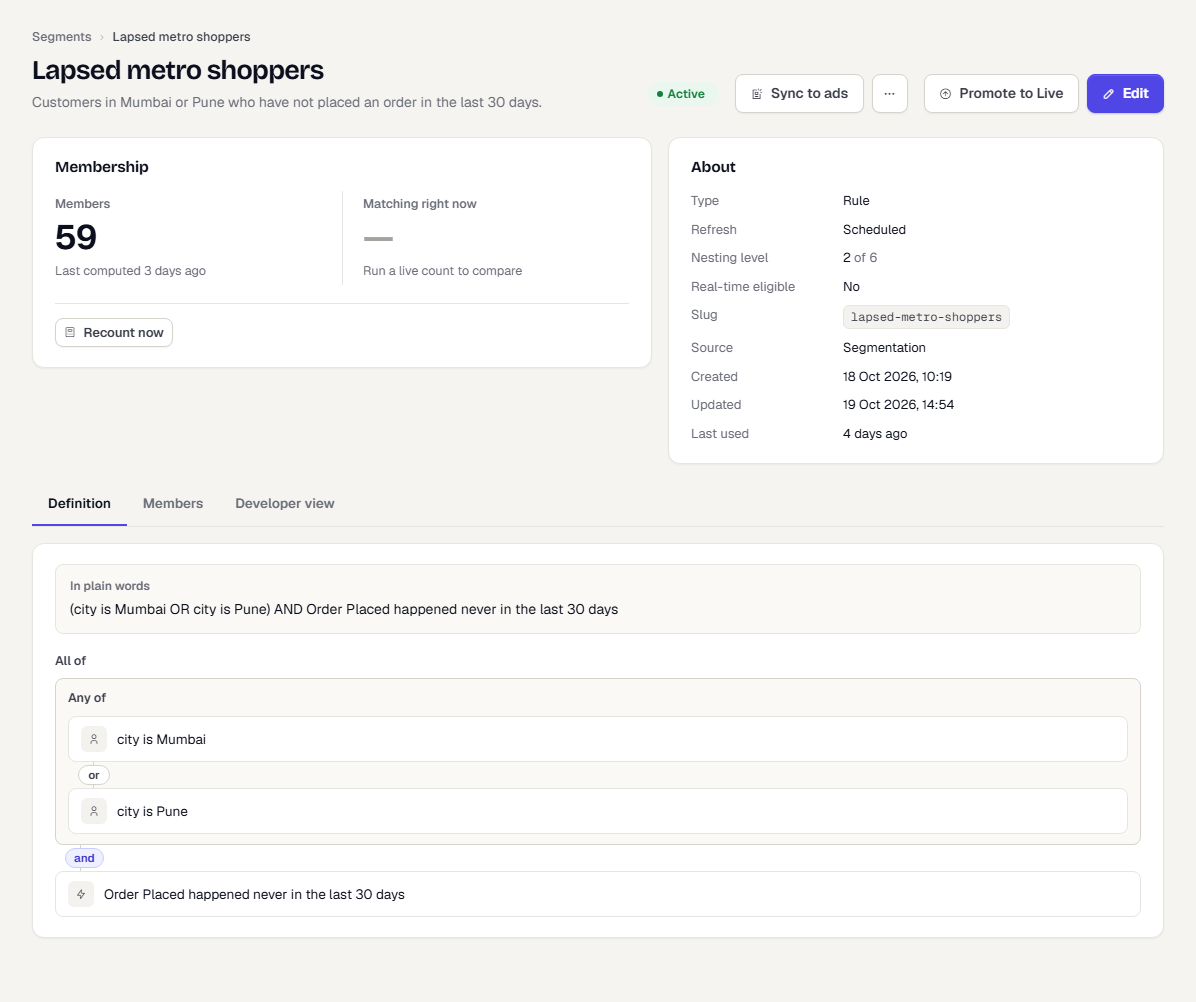
Open the Definition tab. In plain words states the rule as a sentence. Below it, the rule is drawn as groups: All of or Any of, with each condition on its own line and Except users who match for the exclusion.
The Developer view tab shows the same rule as JSON. You rarely need it. It is useful when you share a rule with support.
Browse the members
- Open the Members tab.
- To find someone, type an external id, email or user id into Search external id, email or user id and press Enter.
- To narrow to people you can reach on a device type, open Any push device and choose a platform.
- Select a column heading (External id, Email, Last active or In segment since) to sort.
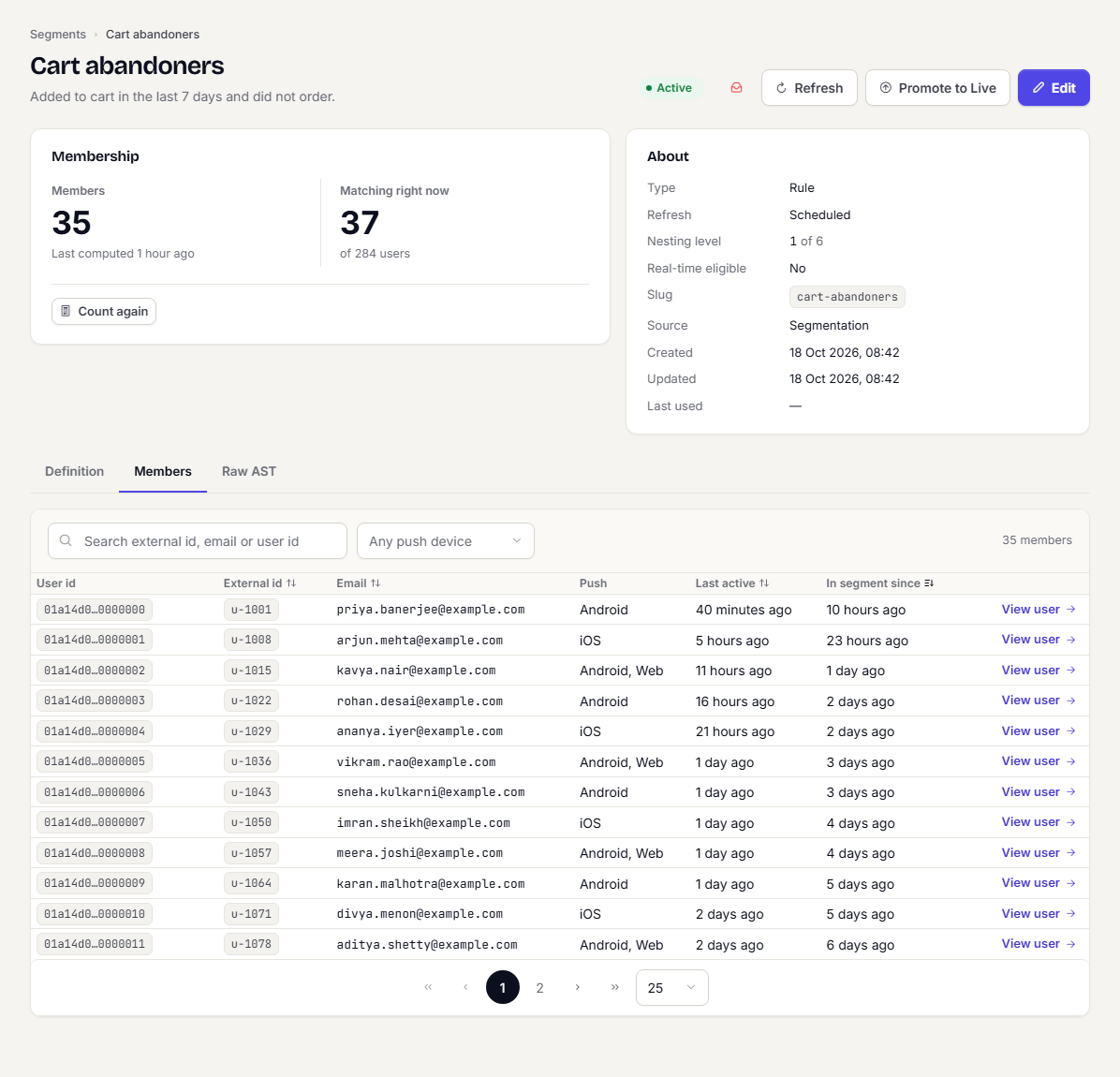
Select a row, or View user, to open the person's profile: Read a user profile. The table pages 25, 50 or 100 at a time and reaches the first part of a large segment. Search or filter to reach anyone further down.
If the tab says No materialised members, the membership has not been computed yet. It appears after the next refresh, or straight away for real-time segments.
Change the segment
- Select Edit to open the builder. See Build a segment.
- Select Sync to ads to send the segment's members to a Google Ads or Meta audience. See Sync segments to ad audiences.
- Open More actions and choose Archive to archive it. Archiving keeps the name reserved forever, and campaigns that use the segment refuse to publish. It is refused while another segment nests this one.
What happens next
- Use the segment as the audience of a campaign or flow.
- To copy a Test segment to Live, select Promote to Live.
Related
Was this page helpful?