Manage events
Name and group events, set severity, count an event as a conversion, replay it over past events, and hide or block names.
The Events tab lists every event name your apps, servers and imports have sent. Give events readable names, group them, set how serious they are, and decide which ones count as conversions.
Before you start
- You need permission to manage data to edit, hide or block events. Without it, you can open an event to view it.
- Events appear after your app or server sends them. If the list is empty, send a test event from an SDK and refresh.
Find an event
- In the sidebar, open Data, then Data Management, and select the Events tab.
- Search by name, display name or category. Use Any status, Any category and Any severity to filter.
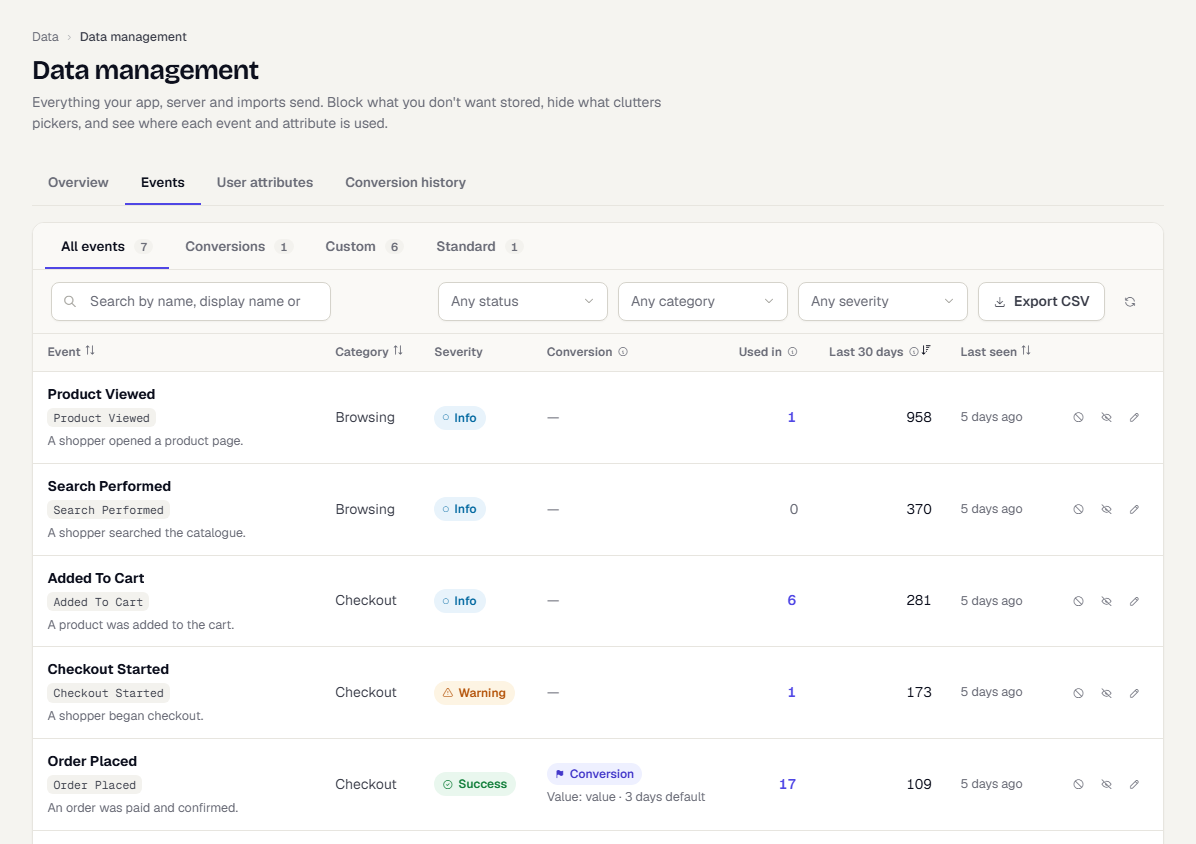
Each row shows the event, its category, severity, whether it counts as a conversion, how many places use it, and its volume in the last 30 days. Events marked Standard are sent by the SDK itself.
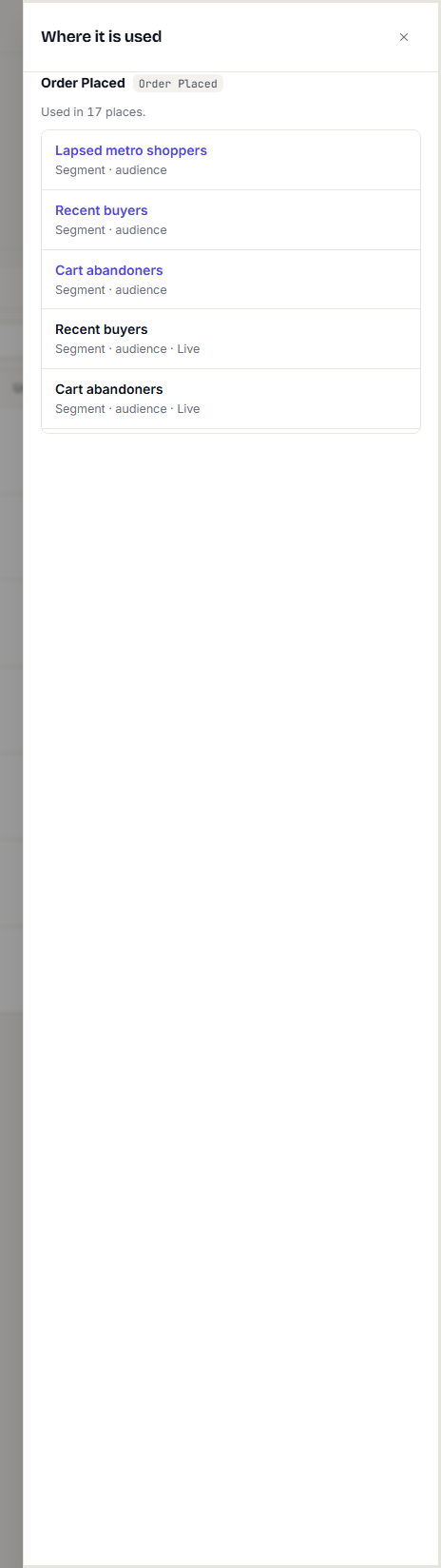
Select a number in Used in to see the segments, campaigns, flows, funnels and reports that reference the event.
Set a display name, category and severity
- In the Events tab, select a row (or its pencil icon) to open Edit event.
- Under How it appears, enter a Display name. It replaces the raw name in pickers, user activity and reports. Leave it empty to use the automatic name.
- Enter or pick a Category, such as
Orders. Add an optional Description.
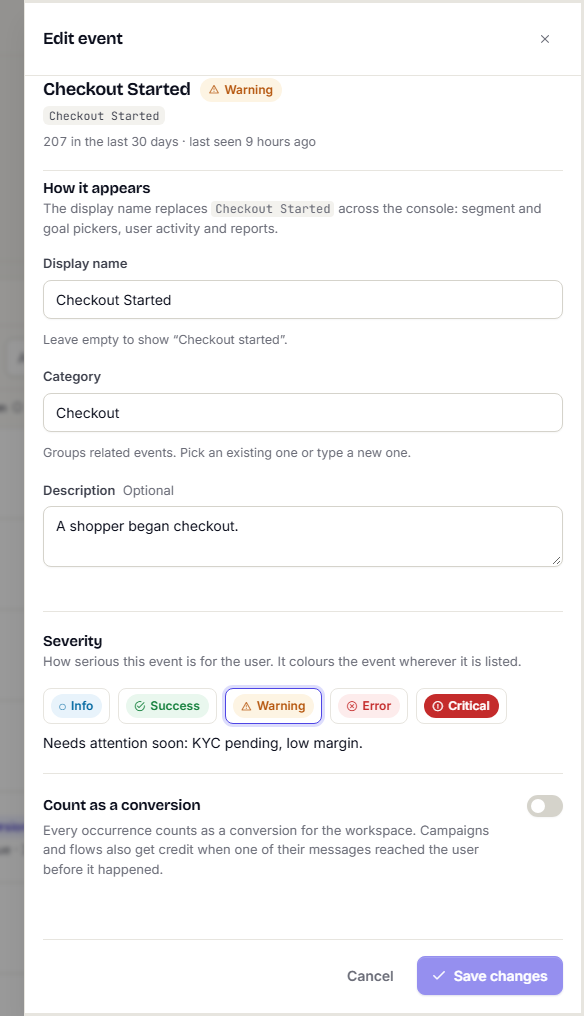
- Under Severity, choose how serious the event is for the user. Severity colours the event wherever it is listed.
- Select Save changes.
Count an event as a conversion
A conversion is an outcome you want messages to lead to, such as an order.
- Open the event, then switch on Count as a conversion.
- Optionally choose a Value property, the event property that holds the amount, such as
amount. Leave it empty to count occurrences only. - Set a Default credit window: how long after a message is sent it can take credit. The range is 5 minutes to 30 days. A campaign or flow that sets its own goal on this event uses its own window instead.
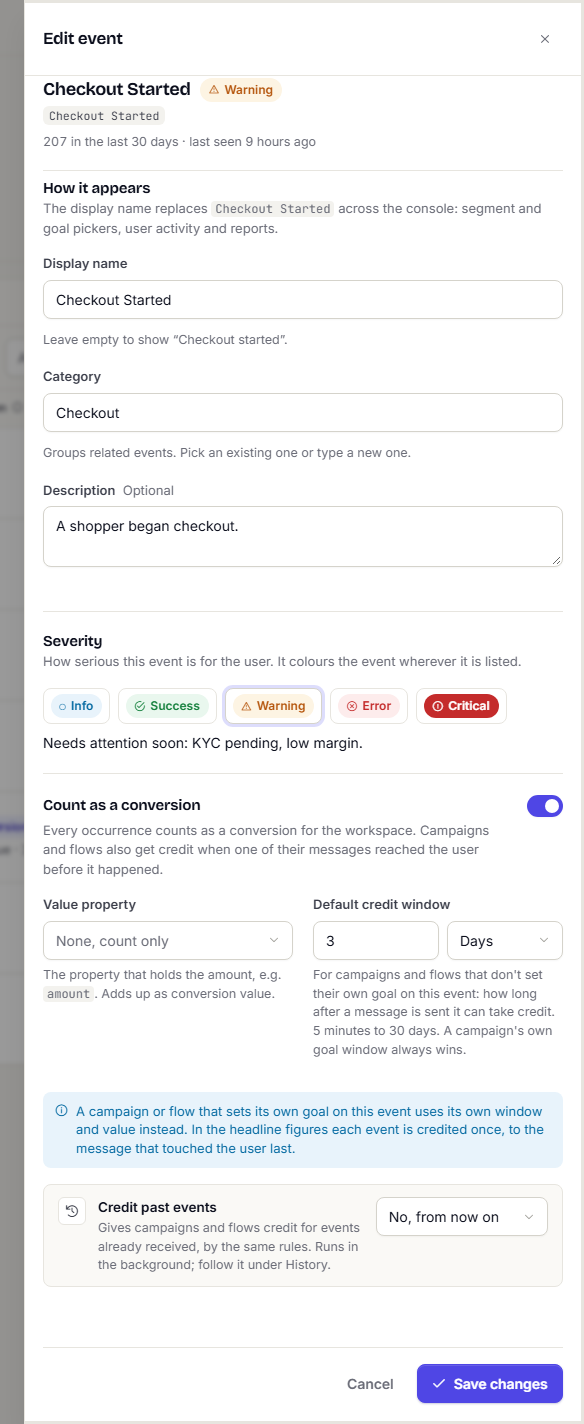
Once an event counts as a conversion, every campaign and flow gets credit when one of its messages reached the user before the event. In headline figures each event is credited once, to the message that touched the user last.
Apply the change to past events
When you change conversion settings, a past-events option appears below the switch. By default the change applies only from now on.
- Turning conversion on shows Credit past events.
- Changing the window or value property shows Recalculate past conversions.
- Turning it off shows Past conversions, with Keep them or removal.
Choose Last 7 days, Last 30 days, Last 90 days or All time, then Save changes. The replay runs in the background. Follow it on the Conversion history tab.
Hide or block an event
Use the icons at the end of a row.
- Hide from pickers keeps storing the event and keeps it working in saved segments and campaigns. It only leaves the name out of pickers.
- Block stops storing events with this name from the next one received. Stored data stays. You can Allow it again at any time.
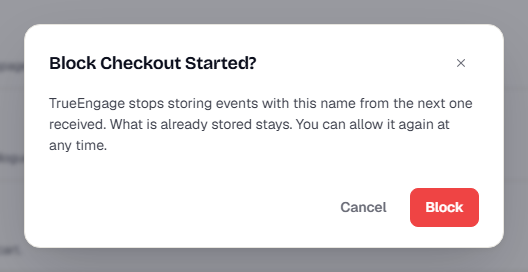
If the event is in use, the dialog lists where and offers Block anyway. Standard events cannot be blocked, but you can hide them.
Download the list
Select Export CSV to download the rows currently shown. The file lists events only, not people.
What happens next
- See replays on Conversion history.
- Pick conversion events as goals when you build campaigns and flows.
Was this page helpful?