Route sends with rules
Send some recipients through a different vendor by country or attribute, set a fallback, and split traffic by weight.
A routing rule chooses which provider sends a message. Use rules to send Indian numbers through a DLT-registered SMS vendor, to retry on a second vendor when the first one errors, or to split traffic between two vendors to compare them.
Before you start
- You need permission to manage channels. If New rule is missing, ask an Owner or Admin.
- Add and verify at least one provider for the channel. A rule that uses two vendors, a fallback or a split needs one provider per vendor.
- Rules are per environment.
How rules are evaluated
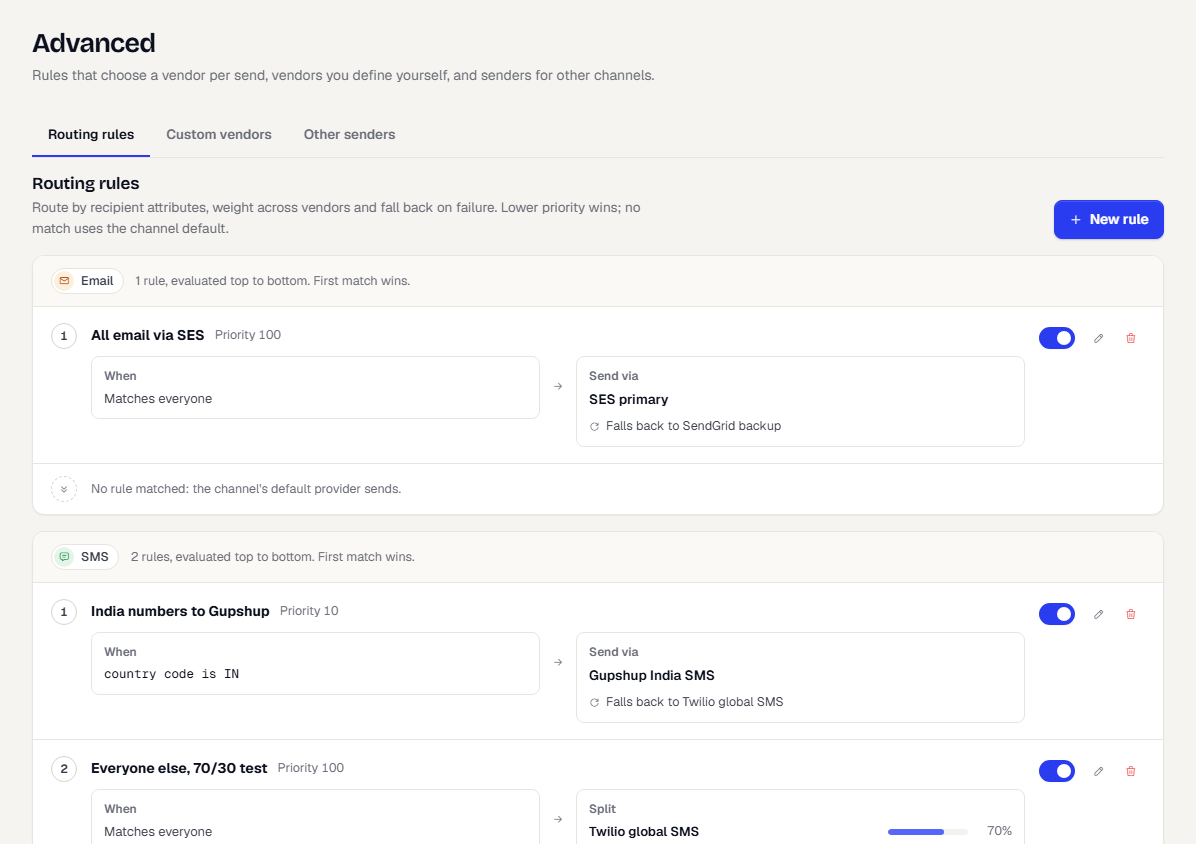
- Rules are grouped by channel. Within a channel they run from the lowest Priority number to the highest, and the first match wins.
- A rule with no conditions matches everyone on its channel.
- If no rule matches, the channel's default provider sends.
- A disabled rule is skipped.
Create a rule
- In the sidebar, open Channels, then Advanced. Routing rules is the first tab.
- Select New rule.
- Under Rule, enter a Name such as "India numbers to Gupshup", pick the Channel and set the Priority (0 to 1000, lower runs first).
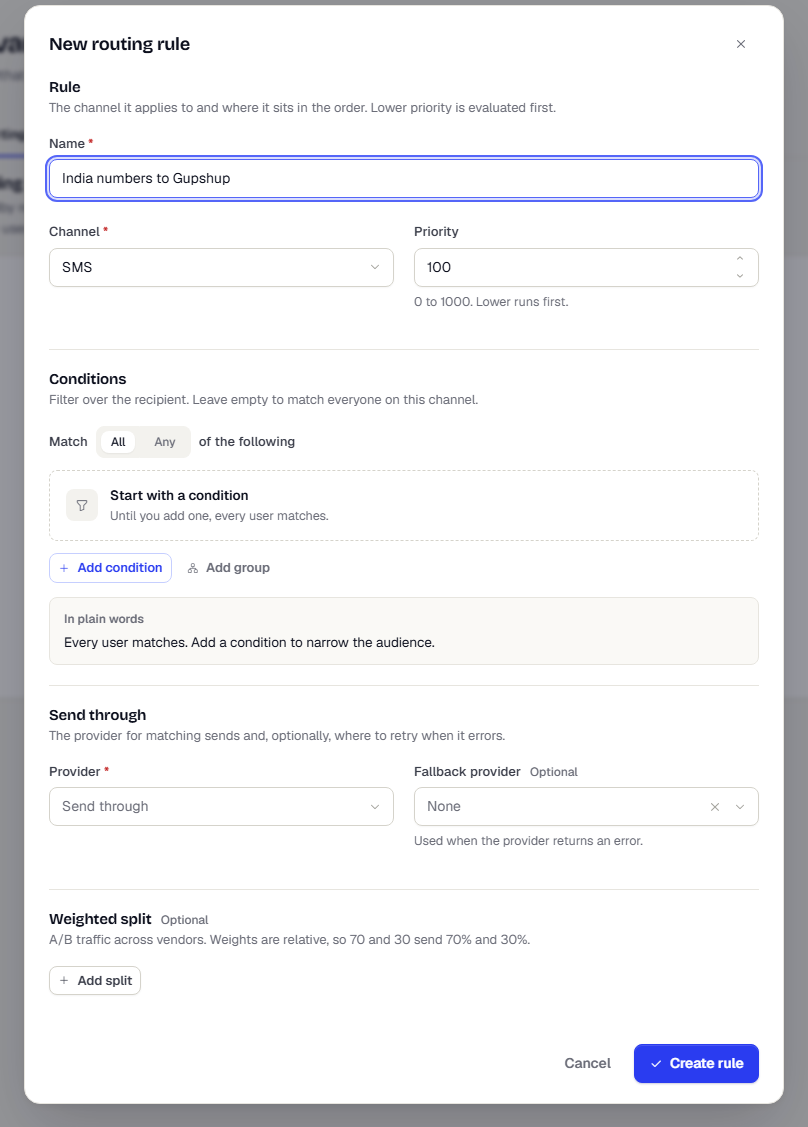
- Under Conditions, build a filter over the recipient's profile attributes, such as a country code equal to
IN. Leave it empty to match everyone on the channel. The builder looks like the one in segments, with fewer options, and has no exclude group. - Under Send through, pick the Provider for matching sends. The list shows each provider with its verification state.
- Optionally pick a Fallback provider. It is used when the first provider returns an error.
- Select Create rule.
Send some countries through one vendor
- Create a rule named "India numbers to Gupshup" on the SMS channel with Priority
10. - Add one condition: country code equals
IN. - Set Provider to your Indian SMS vendor and Fallback provider to a second vendor.
- Keep your global vendor as the channel default. Everyone who is not in India falls through to it.
Split traffic by weight
Use a weighted split to compare vendors or move traffic over gradually.
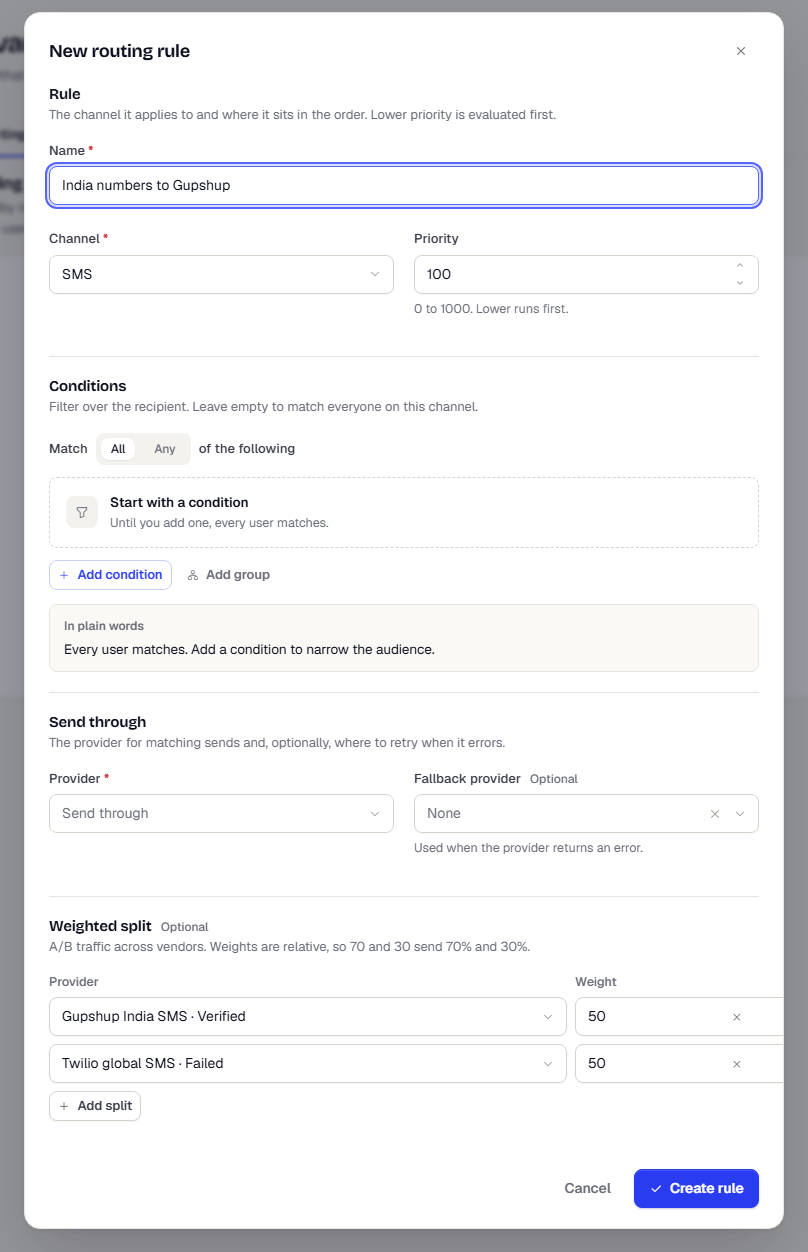
- In the rule dialog, scroll to Weighted split and select Add split.
- Pick a Provider and a Weight (1 to 100) in each row. Add up to five rows.
- Weights are relative. Weights of 70 and 30 send 70% and 30% of matching messages.
- Select Create rule. The rule list shows each share as a bar and a percentage.
Edit, disable and delete
- Use the toggle on a rule to disable or enable it without losing its settings.
- Select the pencil icon (Edit rule) to change it. Select the trash icon (Delete rule) and confirm Delete to remove it.
What happens next
Every send checks the rules for its channel, then falls back to the default provider. Messages that route to a provider that is not verified are held, so verify each provider you use.
Related
Was this page helpful?