SDKs overview
Pick the right TrueEngage SDK, and learn how it queues, batches, tracks sessions and separates Test from Live.
The TrueEngage SDKs send events, user attributes and push tokens from your app or site to TrueEngage. Campaigns, flows and segments are built on that data.
All SDKs are at version 0.8.1 and behave the same way. See the SDK release notes for what changed in each version. Only the install steps and the push setup differ by platform.
Choose an SDK
| Your app | SDK | Install coordinate | Guide |
|---|---|---|---|
| Website or web app | Web | @trueengage/web (npm) |
Web SDK |
| Native Android (Kotlin or Java), Android 6.0+ (API 23) | Android | io.trueengage:trueengage-android:0.8.1 |
Android SDK |
| Native iOS (Swift), iOS 14+ | iOS | TrueEngage (CocoaPods) |
iOS SDK |
| Flutter app on Android and iOS | Flutter | trueengage_flutter |
Flutter SDK |
The Flutter SDK wraps the Android and iOS SDKs. It does not have its own queue, so a Flutter app behaves exactly like the native apps.
If you send data from your own servers instead, use the server API (see the API section). Do not put a server key in an app or web page.
What every SDK does
- Tracks events. Your own events, such as
Order Placed, plus events the SDK sends for you, such asApp OpenedandPush Clicked. See Events, attributes and identity. - Identifies users. Anonymous until you call
identify. TrueEngage merges the anonymous history into the identified profile. - Keeps user attributes. Custom attributes and reserved ones such as email and phone.
- Registers push. Sends the push token or web subscription, and records receipts, clicks and dismissals. See Push notifications.
- Collects device location, only if you ask. See Device location.
- Opens smart links and creates them. Your app receives the screen a link points to, including after an install, and can create short links for shares and referrals. See Deep links and deferred deep links and Links API and webhooks.
- Records where users came from. Links and ads that carry campaign or click ids are recorded as one touch per click. See See where each user came from.
- Respects consent. Opt out of tracking, push or in-app, per scope. See Consent and opt-out.
How the offline queue and batching work
The SDK never sends an event straight from your code to the network. It writes the event to a local queue first, then sends batches in the background.
- Write first. Each event is saved to local storage (SQLite on Android and iOS, IndexedDB on the web) before any network call. A crash or a lost connection does not lose it.
- Send in order. Events, identify calls, attribute changes and push tokens go out together in one ordered batch. An
identifycall never overtakes the events before it. - Flush on a schedule. By default the SDK sends a batch every 30 seconds while the app is in the foreground, as soon as 50 events are waiting, when the app moves to the background, and when the network comes back.
identify, push tokens and push receipts are sent right away. - Retry safely. A failed batch is retried with growing delays, from 30 seconds up to 15 minutes. If the server asks the SDK to stop (an invalid app key), it pauses for one hour.
- Cap the queue. The queue holds up to 10,000 items. When it is full, the oldest are dropped first. Items are discarded after 7 days or 10 failed attempts.
Calls you make before initialize returns are queued and replayed in order, so the first App Opened of a new install is not lost.
On the web the queue is best-effort. Browsers can clear site storage, and when a tab closes the SDK sends what is pending with the browser's beacon API.
You can change the timing with these configuration fields. The same names are used on every platform.
| Field | Default | Meaning |
|---|---|---|
flushIntervalSeconds |
30 | Seconds between timed flushes |
flushBatchSize |
50 | Flush as soon as this many items are waiting |
maxQueueSize |
10000 | Items kept locally before the oldest are dropped |
Sessions
A session starts when the user first opens the app (or loads the site) and ends after 30 minutes without activity. Change the window with sessionTimeoutMinutes.
- The SDK sends
Session StartedandSession Ended. App Openedis sent only when a new session starts, not on every return to the foreground. This keeps active-user and retention numbers honest.- On the web, the session survives page navigation within your site.
- An event sent with
nonInteractiveset does not start or extend a session. Use it for background work that should not make a dormant user look active.
Test and Live keys
Each workspace has two environments, Test and Live. An app key belongs to exactly one of them.
| Key prefix | Environment | Use for |
|---|---|---|
test_ |
Test | Development, QA and debug builds |
live_ |
Live | Production builds |
The SDK sends the key with every request, and TrueEngage picks the environment from it. A test_ key can never write Live data.
Use a Test key in debug builds and a Live key in release builds. A common pattern is to read the key from build config instead of hard-coding it.
An app key is public. It identifies your app and is safe to ship in your app or page. Never ship a server key.
In the console, find the environment switch in the top bar. Everything you send with a Test key shows up under Test.
Calling initialize a second time with a different key is ignored. With a test_ key it also raises an error, so you notice the mistake while developing.
Verify it works
After you finish any SDK guide:
- In the console, switch to the Test environment.
- Go to Audience → Users.
- Search for the id you passed to
identify, for exampleu-1001. - Open the profile. You see the user's attributes and an activity list with
App Openedand your own events.
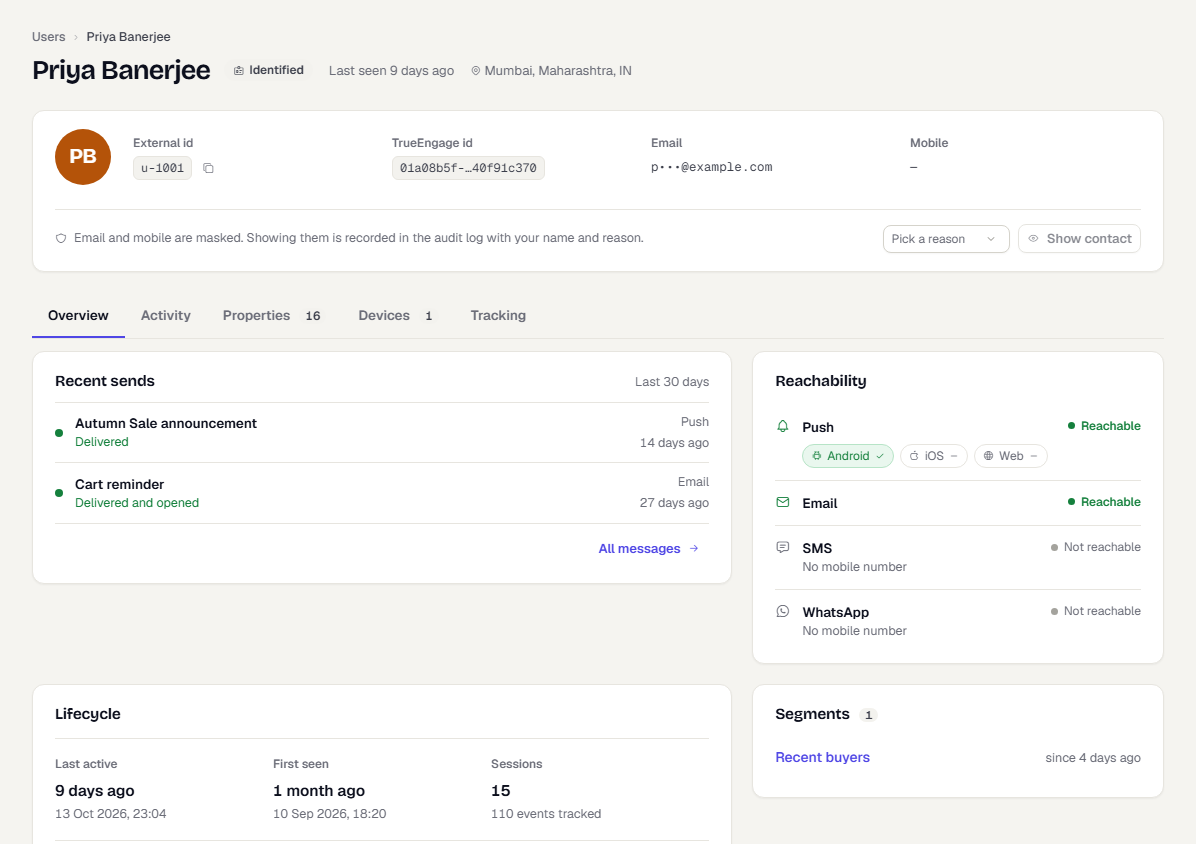
If the user does not appear within a minute, see the troubleshooting section of your platform guide.
Next steps
Was this page helpful?