Device location
How TrueEngage works out a user's country, region and city, and how to collect an opt-in device location.
Short answer: you need to do nothing, unless you target by city. TrueEngage works out a user's country, and usually the region, from the network address of the requests the SDK already sends. It needs no permission and no release.
A city is different. Mobile carriers share network addresses across large areas, so an address cannot tell you which city a mobile user is in. If your campaigns target cities, use the device location in this guide, or set the city from your own records.
Before you start
- SDK version 0.3.0 or later for device location.
- Decide whether you need a city. If you do not, skip device location. Your app keeps the smaller permission and store disclosure footprint.
How location is worked out
The SDK sends batches of events. TrueEngage reads the sender's network address, looks it up in a geolocation database and saves the result on the profile. The address itself is not stored.
| Field | Source |
|---|---|
countryCode |
Network address, with the device's own country as a fallback |
region |
Network address, where the address is reliable |
city |
Network address, only where the address is reliable |
Accuracy is city level at best. The saved point is the middle of the city, not the user's position.
Why the city is often blank on mobile networks
Carriers route traffic from a whole country through a few gateways, and they register large address blocks to one office. A phone in Bhopal can leave the network in Mumbai, so the address really is in Mumbai.
TrueEngage leaves the city blank for users on mobile carriers. A blank value is better than a wrong one. Depending on the carrier, the region may be blank too.
- Location fills forward. It is saved when an event arrives. Users who never open the app again stay blank.
- Existing profiles update on that user's next event.
- A blank location never affects event delivery.
Choose how to get a city
| Option | Accuracy | Needs a permission | Best for |
|---|---|---|---|
| Device location (this page) | Exact coordinates, with city and region where the platform provides them | Yes, with your own explanation first | Apps that target by city or by distance |
| Set it yourself (below) | As good as your data | No | Apps with a verified address from onboarding or KYC |
Collect device location
Device location is opt-in twice. Your app must declare the permission, and your app must ask. The SDK never asks from initialize unless you set locationPrompt to auto.
Step 1: Declare the permission
The SDK does not declare it for you. An app that does not want location should not inherit the permission or its store disclosure.
Android, in your app's AndroidManifest.xml:
<uses-permission android:name="android.permission.ACCESS_FINE_LOCATION" />
iOS, in your app's Info.plist:
<key>NSLocationWhenInUseUsageDescription</key>
<string>We use your location to show offers near you.</string>
Web needs no declaration, but the page must run on https.
If you skip this step, the SDK returns restricted and never calls the operating system. On iOS this check matters: asking without a usage string would crash the app.
Step 2: Explain, then ask
Google Play requires a clear in-app disclosure before the permission prompt. The SDK cannot show it for you. Show your own screen that says what you collect and why, then call:
// Android
TrueEngage.requestLocationPermission(activity) { status -> /* granted | denied | restricted | not_requested */ }

// Forward the result from your Activity
override fun onRequestPermissionsResult(code: Int, perms: Array<String>, results: IntArray) {
    super.onRequestPermissionsResult(code, perms, results)
    TrueEngage.handleLocationPermissionResult(code, results)
}
// iOS
TrueEngage.requestLocationPermission { status in /* granted | denied | restricted | not_requested */ }
// Flutter
final status = await TrueEngage.requestLocationPermission();
// Web, from a click
const status = await TrueEngage.requestLocationPermission();
| Status | Meaning |
|---|---|
granted |
The user allowed it. |
denied |
The user refused. |
restricted |
Your app did not declare the permission, the platform cannot provide it, or on the web the page is not https. |
not_requested |
Nobody has asked yet. |
Step 3: Let the SDK refresh
Once permission is granted, the SDK takes a fix when the app comes to the foreground, at most once every locationRefreshHours (default 4, minimum 1). It runs in the foreground only. There is no background location and no geofencing.
To take a fix at a moment you choose, call updateLocation. It never shows a prompt. It reports whether a new fix was stored.
TrueEngage.updateLocation { stored -> } // Android
TrueEngage.updateLocation { stored in } // iOS
final stored = await TrueEngage.updateLocation(); // Flutter
const stored = await TrueEngage.updateLocation(); // Web
The auto option
If you set locationPrompt to auto, the SDK asks once when a session starts. We do not recommend it. A prompt with no context is refused far more often, and on iOS you get one chance.
What is collected
| Platform | Collected |
|---|---|
| Android | Exact latitude and longitude, accuracy in metres, time of the fix, permission status, and the city and region the device works out |
| iOS | The same, with city and region from Apple's reverse geocoder, in English |
| Web | Exact latitude and longitude, accuracy, time and permission status. The browser gives no city or region. |
Fixes less accurate than 50 km, with invalid coordinates, or with a future timestamp are discarded. If the user refuses, the stored fix is cleared. Opting out of tracking stops collection and deletes the stored fix.
Coordinates are personal data. Update your privacy notice and your store listing:
- Declare precise location in the Google Play data safety form and the App Store privacy label.
- On iOS, the SDK's privacy manifest declares precise location for any app that includes it, so check your label even if you never call the API.
- In the console, coordinates are shown rounded to about 11 km. Seeing the exact pair needs a reveal that is written to the audit log.
Events you get for free
The SDK sends Location Permission Granted or Location Permission Denied when the user decides. These names are reserved, so do not track them yourself.
They fire on a change. If a user later withdraws permission in system settings, you get a Denied event the next time the app comes to the foreground. Nothing is sent for restricted or not_requested, because those describe your build, not a decision by the user.
Use the Granted rate to judge where you ask. A cold prompt on first launch is both a poor rate and a Google Play policy problem.
How it changes targeting
A device fix outranks everything, including a city you set with setCity. A fix says where the user is. setCity says where you think they live. A customer on holiday leaves their home-city audience that day.
If you want the opposite, do not collect device location and use setCity alone.
Radius audiences, such as "within 5 km of this shop", only match users who have a device fix.
Set the location yourself
Use these setters only when your app holds a verified address, from your own onboarding or profile record. Call them after that data has loaded, never at startup with placeholder values.
TrueEngage.setCity("Mumbai")
TrueEngage.setRegion("Maharashtra")   // state or province
TrueEngage.setCountryCode("IN")       // two letters, uppercase
The same three setters exist on iOS, Flutter and web.
A value you set this way outranks the address lookup, and later lookups cannot overwrite it. That is right for "where this customer lives". It also means a wrong value is worse than none. Do not set a guess, a default, or a value taken from the device locale.
What does not exist
- No SDK accepts coordinates from your code. Coordinates come from a device fix with consent, or not at all.
- Do not send latitude and longitude as custom attributes. They become ordinary profile attributes, and radius conditions ignore them.
- Background location, geofence events and location history are not available. Each fix replaces the last.
Verify it works
- Run the app on a real device with a
test_key. Use mobile data and no VPN. - Accept the location prompt, then open the app so a session starts.
- In the console, switch to Test and go to Audience → Users.
- Search for the user and open the profile. The Location line shows the place, with a note under it.
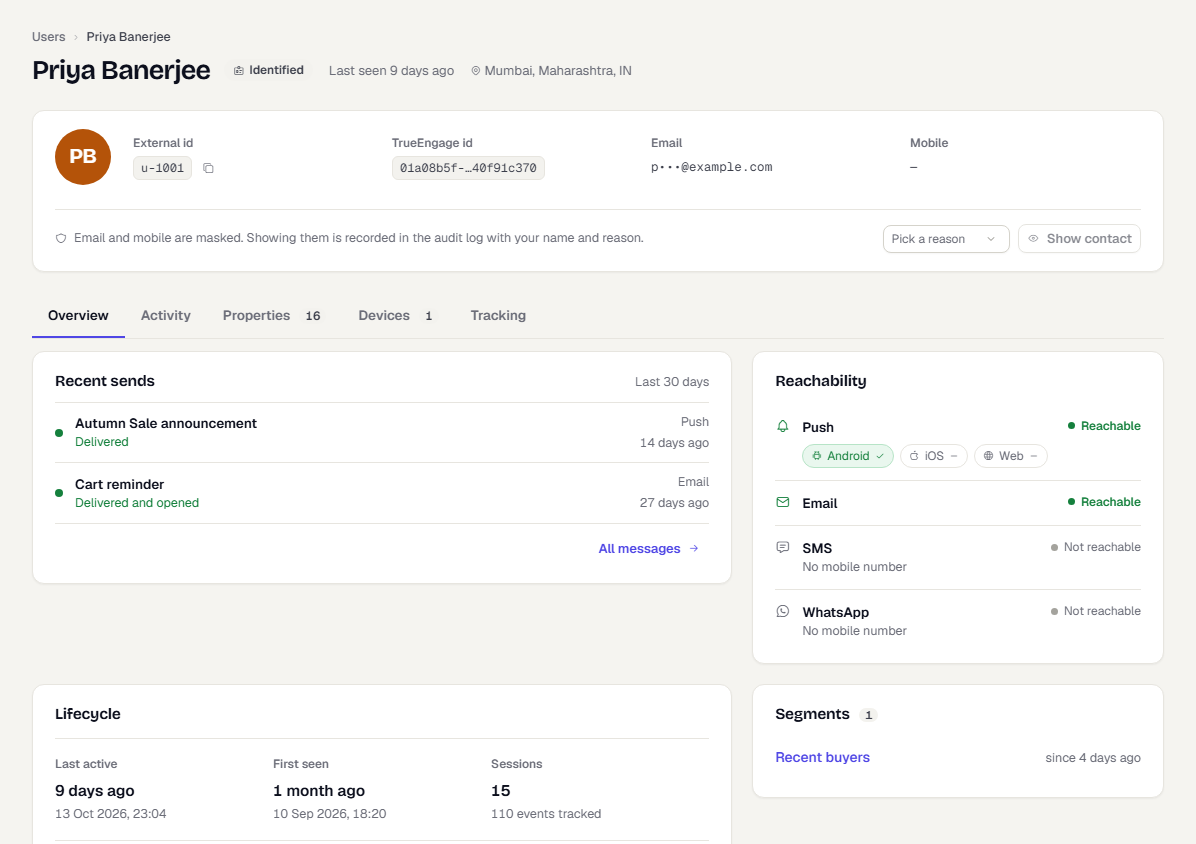
The note tells you which source won:
| Note | Meaning |
|---|---|
| Estimated from network address | Worked out from the address. The normal case. |
| Set by the app | One of the setters was called. |
| Blank | Nothing has located this user yet. |
If it stays blank
- The user has not sent an event since you set it up.
- The device is on a carrier network where the city is blank by design. Try Wi-Fi.
- A blank country is the thing to investigate. Contact support.
Checklist
- Country and region need no work.
- If you target by city, collect device location, or call
setCityfrom verified data. - Declare the permission in your manifest or Info.plist.
- Show your own explanation before the prompt.
- Update your privacy notice and store listing.
- Do not send coordinates as custom attributes.
- Verify on a real device.
Was this page helpful?